What is the IDrive web client?
The IDrive web client helps you upload, view, search, and restore files directly from the web. Use your user-name and password to login at www.idrive.com. You can share data with friends, view backup status reports, manage your account subscription, etc.
View backed up files and folders
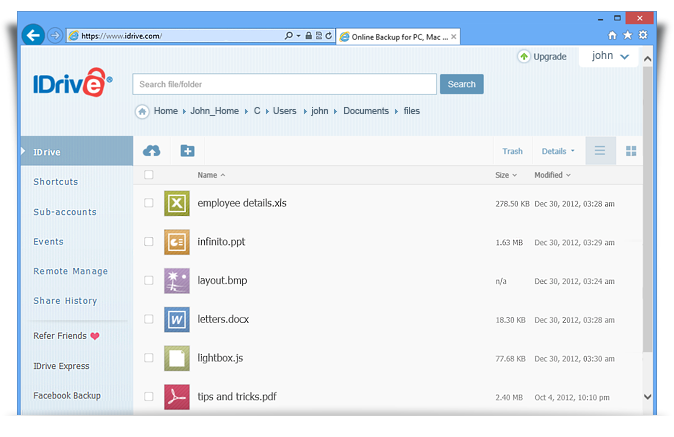
Once logged in, computers from where your data is backed up are displayed. Click on the computer/drive name to view all your backed up files and folders. The same folder structure, as on your local computer is maintained.
Restore your data
Steps:
-
Click on the file that you want to restore to your local computer.
-
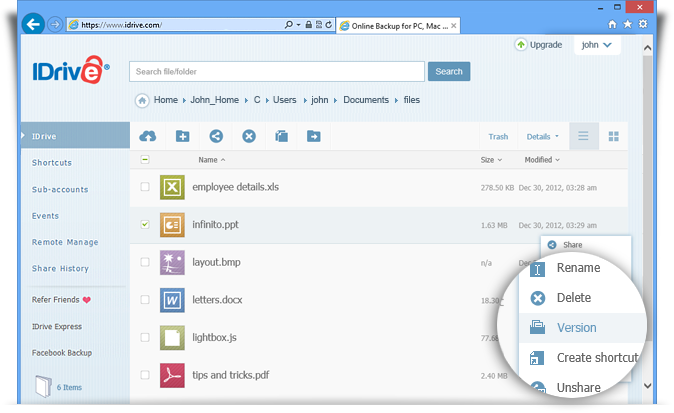
To restore any older version of a backed up file, click the
 option icon alongside the file that you wish to restore and select 'Version'.
-
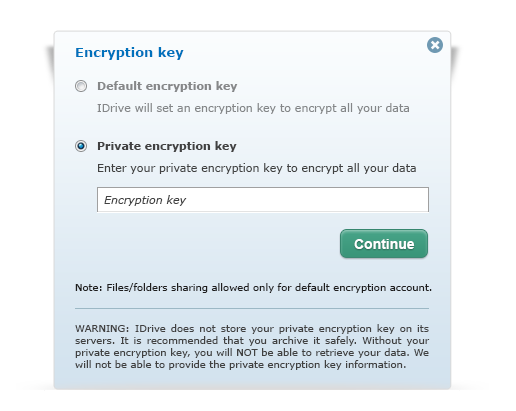
Provide the 'Encryption Key' (required only once for a session). In case you had opted for the default key, you can directly restore files to your local computer.
Search backed up files and folders
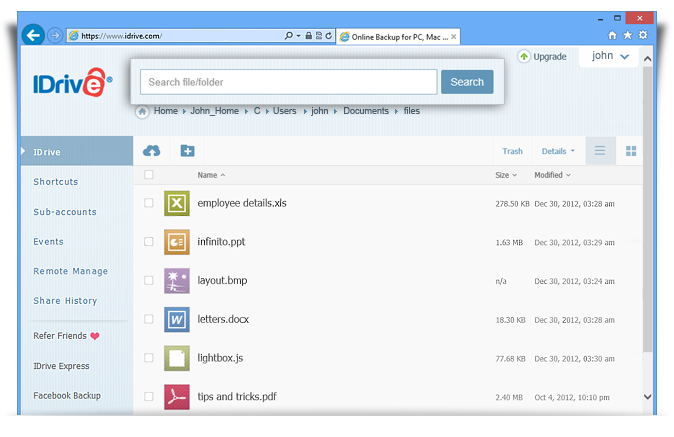
In the 'Search' box, provide the name of the file or folder that you wish to find in your account.
|
|
|
|
|
|
|
Can I upload files and folders to my account?
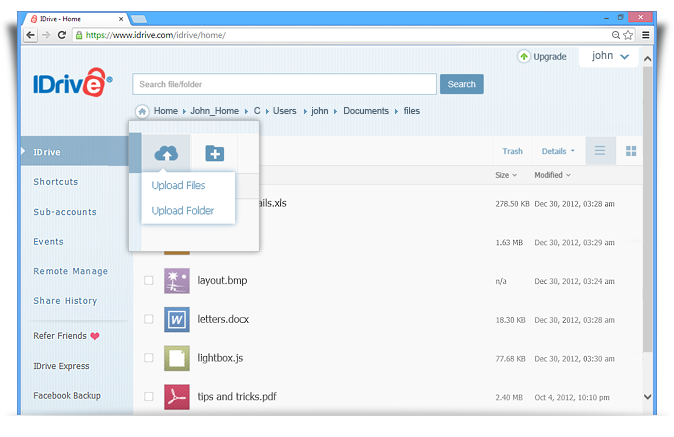
Yes, you can easily upload files and folders to your IDrive account. Login using any web browser and do one of the following,
-
Drag and drop files / folders from your computer to IDrive account
Or,
-
Mouse over on
 , you will have the option to choose 'Upload File' or 'Upload Folder'.
Note:
- Currently, you can upload folders only on Google Chrome.
- Drag and drop is supported only on Google Chrome and Mozilla FireFox.
|
|
|
|
|
How do I update my profile?
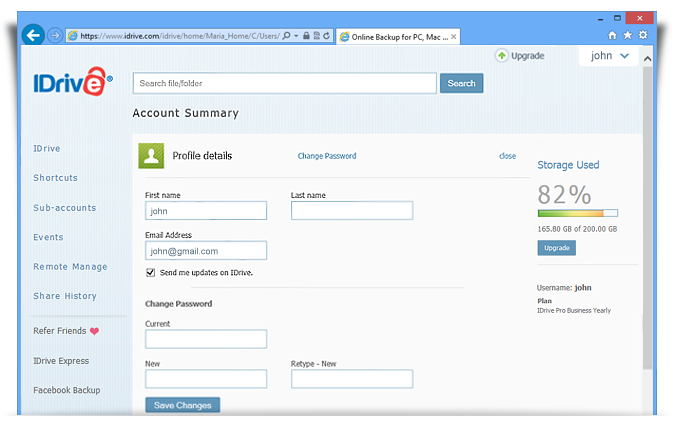
Login to your account via the web and click on your user-name, on the top right corner of the screen. Select 'Profile' to change your name, password and email address.
|
|
|
|
|
What is Gallery View?
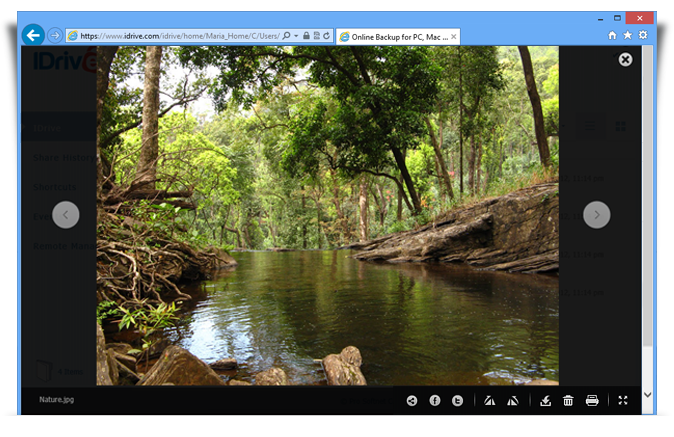
The Gallery View feature improves your viewing experience for photos.
You can share (email, Facebook, Twitter), rotate, download, delete, and print your images, directly from the Gallery View.
|
|
|
|
|
Does IDrive support video streaming?
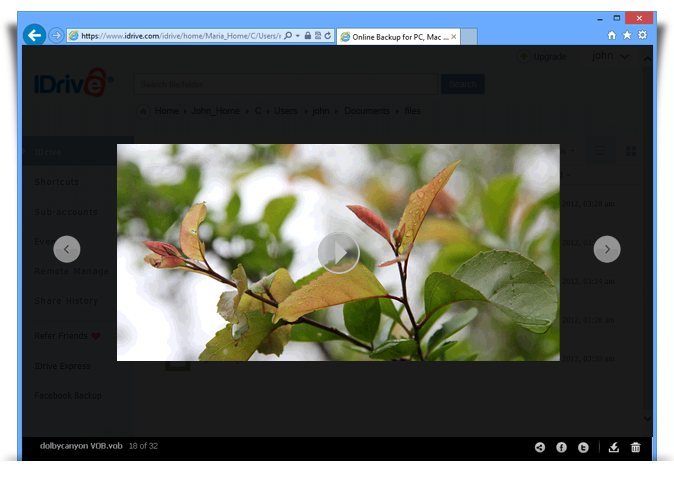
Yes, you can stream video files directly from your IDrive account using any web browser. You can play MP4, WebM, FLV media file formats.
|
|
|
|
|
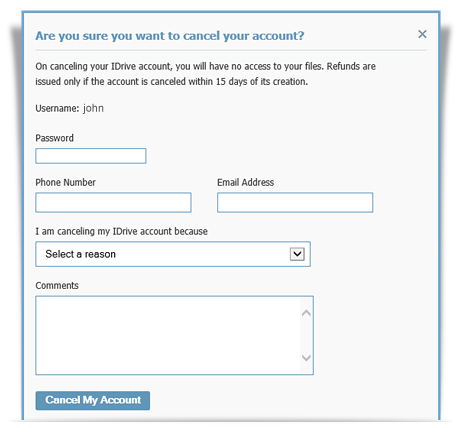
How do I cancel my subscription?
To cancel your account,
-
Log-in to your IDrive account and click on your user-name, on the top right corner of the screen.
-
Select Account and click the Cancel your account option from the summary displayed.
-
Enter your details and select the reason for cancellation from the dropdown in the form that is displayed.
-
Click Cancel My Account button. You will receive an email confirming the cancellation of your account.
|
|
|
Is it possible to manage my Backup set and schedule backup jobs via the web interface?
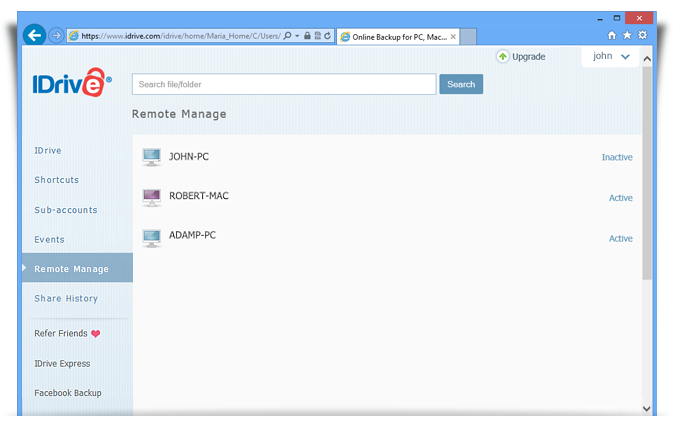
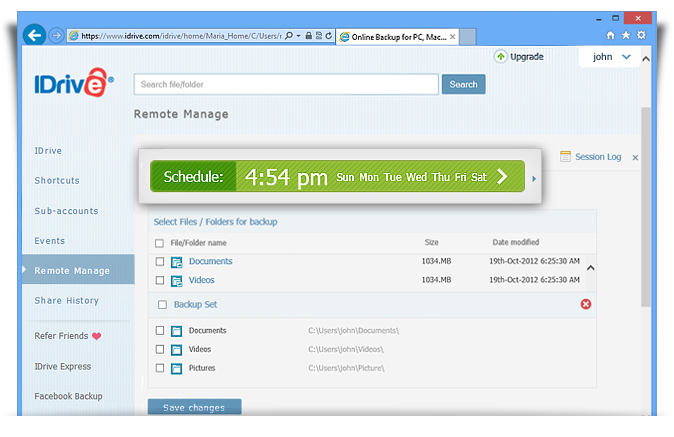
Yes. You can manage your Backup set, schedule backup jobs and view detailed logs via the IDrive web interface using any web browser. For this, login to your account via any browser and click the Remote Manage option.
You can perform the following functions:
Add data to the Backup set
-
Select the files / folders to be backed up, using the check boxes, under the Backup Set section.
-
Click 'Update Backup set' to update your Backup set.
Delete data from the Backup set
-
Under the Backup Set section, clear the check boxes for the files / folders that you wish to remove from your Backup Set.
-
Click 'Update Backup set' to update the Backup set.
Schedule a Backup
-
Click the Schedule button. The screen with configurable scheduling parameters is displayed.
-
Select the backup date, time, frequency and notification type among other options.
-
Click 'Update Scheduler' to update the scheduled backup details.
View Session Log
-
Click the View Session Log button. A list of session logs is displayed.
-
Click the specific session log that you want to view.
Note: The Remote Manage option is enabled by default in the IDrive application. You can disable this option from the IDrive Tray.
|
|
|
|
|
What is the Desktop Backup Report?
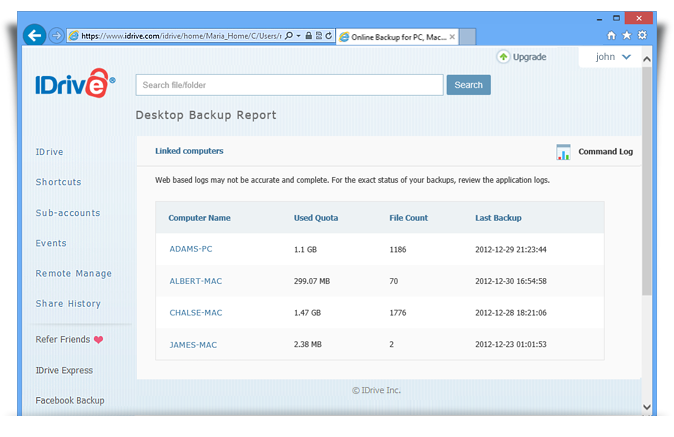
'Desktop Backup Report' summarizes the status of the scheduled backups for your IDrive account. By default, a report for the last seven days is displayed.
|
|
|
|
|
How do I view the command log report?
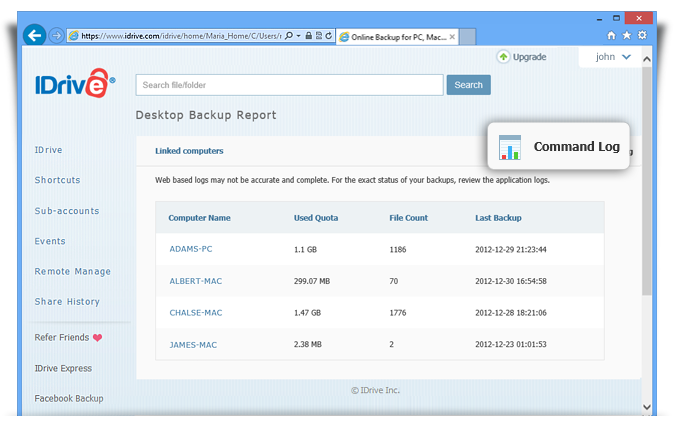
IDrive's Command Log feature maintains a list of all operations like Upload, Download, Rename, Delete etc., performed in your account using the desktop application or the web interface or the IDrive APIs.
To view the command log report,
-
Click on your user-name on the top right corner.
-
Click Desktop Backup Report, under Reports.
-
Click on the 'Command Log' icon.
-
By default, all activities performed in the current month are displayed.
-
Click on the view option under “Details”. You can also download the complete details by using the download option.
|
|
|
|
|
What are Events?
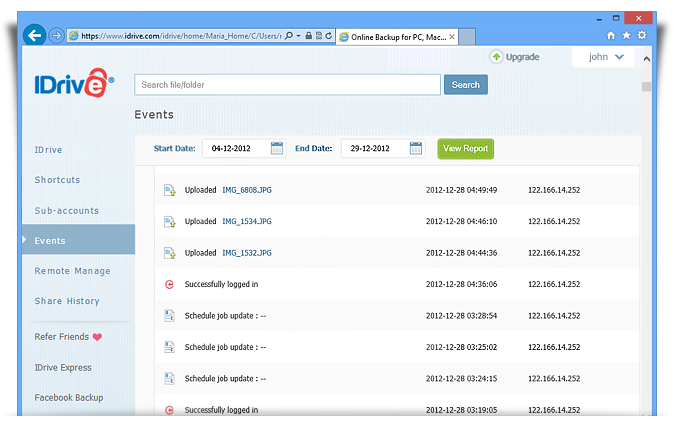
The Events feature provides the history of the activities performed in your IDrive account in a browser session. You can track login / logout activities, file and folder operations like upload, download, share, etc. The date and time of the activity and the IP address from where the activity originated is also listed.
To view the browser based activities,
-
Click on your user-name on the top right corner.
-
Click Events, under Reports.
-
By default, all activities performed in the current day are displayed.
-
To view previous details, select the Start Date and End Date and click View Report.
|
|
|
|
|
How do I restore a previous version of my backed up file via the web?
To restore previous version of a file via the web:
-
Login to your IDrive account.
-
On the Web-Manager main page click the option icon alongside the file that you wish to restore and select “Version”.
-
The 'Versions' screen is displayed. Select the desired version and click on 'Download’.
-
Choose the destination in your local computer to restore.
|
|
|
|
|
Is it possible to restore the files that are accidentally deleted from my IDrive account via the web?
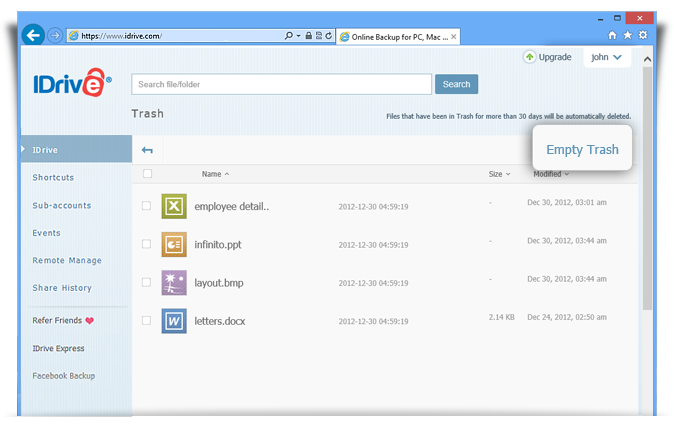
Yes. All files deleted from your account will be moved to Trash. You can either move your files to the original location in your IDrive account or restore them to your local computer. The files present in Trash will automatically get deleted after a 30 day period.
To restore / move your files from Trash, follow these steps:
-
Login to your IDrive account and click the Trash icon.
-
Select the check box and click the 'Put Back' button to move the files to the original location in your IDrive account. OR restore the files to the desired location in your local computer. You can also delete a file permanently from Trash, if it is no longer required.
|
|
|
|
|
Is there a size limit on files to download from IDrive, using any web browser?
Yes, you can download an individual file up to 2 GB in size from your IDrive account, using any web browser.
We recommend using the IDrive desktop application to download/restore a larger file.
|
|



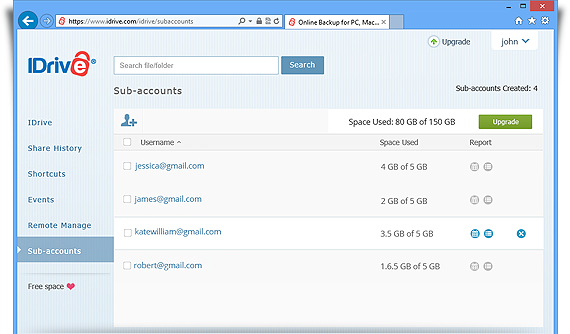
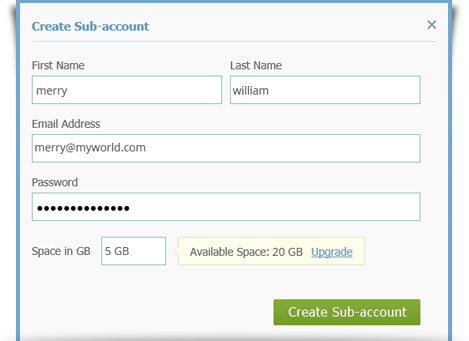
 , fill out the 'Create Sub-account' form.
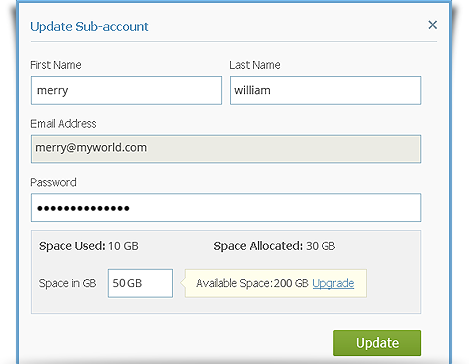


 corresponding to the 'Username'.

 اشتراک گذاری آنلاین فایل ها با IDrive
 آموزش بکاپ گیری اتوماتیک از موبایل بوسیله Idrive (زبان اصلی)

