loading...
IDrive | آی درایو

IDrive


دیگر دوران نگهداری فایل ها در هارد کامپیوتر

و یا بکاپ گیری و کپی برداری از آن ها روی

کارت حافظه/فلش/سی دی/و...

سپری شده است!!


"جای فایل ها فقط در سرور های ابری آنلاین است"


  • همیشه ، همه جای جهان ، با هر سیستمی به آن ها دسترسی دارید!

  • هرگز آن ها را از دست نمیدهید !

  • می توانید آنها را با دیگران به اشتراک بگذارید !

  • ...


"آی درایو" (iDrive) نام یک کمپانی بسیار معتبر بین المللی می باشد که سابقه سال ها فعالیت موفق در زمینه هاستینگ ، سیستم های بکاپ گیری و اشتراک گذاری فایل را در کارنامه خود دارد.

این کمپانی دو نرم افزار رایگان دارد که در ایران کمتر کسی با آنها آشناست

  1.  نرم افزار بکاپ گیری
  2.  نرم افزار به اشتراک گذاری فایل ها

این وبلاگ ضمن آشنایی شما با امکانات این دو نرم افزار کم حجم و قدرتمند، از شما دعوت می کند آنها و مورد استفاده قرار دهید.


ثبت نام در سیستم اشتراک گذاری آنلاین فایل "IDrive"

آی درایو سینک

برای دریافت 10.5 گیگابایت فضای رایگان
همین حالا کلیک کنید
...

>  آشنایی با امکانات این سیستم


ثبت نام در سیستم بکاپ گیری خودکار و آنلاین "IDrive"

Idrive آی درایو

برای دریافت 5.5 گیگابایت فضای رایگان
همین حالا ثبت نام کنید
...

>  آشنایی با امکانات این سیستم

Google

نرم افزار اول

اشتراک گذاری آنلاین فایل ها با IDrive

آی درایو سینک


ابر سامانه IDrive نرم افزاری را ارائه کرده که به کمک آن می توانید فایل های خود را با سرورهای قدرتمند این کمپانی همگام سازی (Sync) کنید و همچنین ضمن داشتن یک بکاپ آنلاین و همزمان یک نسخه آفلاین فایل ها یا فولدر هایتان را با افراد مورد نظر اشتراک گذاری (Share) کنید.

این شبیه همان نرم افزار DropBox (دراپ باکس) می باشد البته توانایی های IDrive بسایر بیشتر می باشد.

توجه: در صورتی که اکنون دراپ باکس روی سیستم شما نصب میباشد می توانید آی درایو را در کنار آن هم نصب نموده و از فضا و امکانات هر دو همزمان استفاده نمایید


بررسی ویژگی های  IDrive Sync  :

آی درایو

 10.5 گیگابایت فضای رایگان اولیه

(5 برابر دراپ باکس)

+ امکان افزایش فضا تا بیش از 20 گیگابایت به صورت رایگان

+ امکان خرید فضا با شرایط مناسب

فضای هدیه

1 گیگابایت

فضای هدیه

به ازای دعوت هر نفر

از دوستانتان

(2 برابر دراپ باکس)

سرور های آی درایو نگهداری فایل ها در ابر سرورهای پر سرعت
آی درایور

نرم افزار دسکتاپ حرفه ای

+ پانل و دایرکتوری آنلاین

IDrive-Cross-Platform Sync

همگام سازی لحظه ای متقابل و دوطرفه کامپیوتر با سرور

Synchronization

Out of Box-IDrive تکنولوژی انحصاری Out of Box™ برای فایل هایی که قصد ویرایش مجدد آن ها را ندارید
Security_IDrive حفظ امنیت فایل ها با الگوریتم قدرتمند private 256 bit AES encryption 
Sharing IDrive

به اشتراک گذاری فایل ها با افراد یا وبسایت های دیگر

به همراه ارائه لینک مستقیم

WorkSpaces امکان ساخت تعداد نامحدود فضای کاری (Work Spaces) با امکان مدیریت سطوح دسترسی اعضا برای ویرایش یا مشاهده فایل ها
Photos & Timeline

امکانات حرفه ای برای ساخت

گالری عکس آنلاین

iOS & Android

امکان نصب روی تمام سیستم های

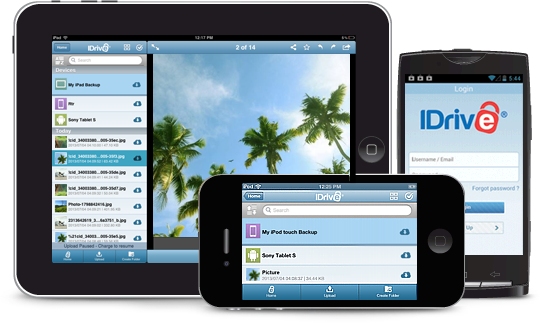
موبایل ، تبلت ، لپتاپ ، کامپیوتر

که امکان اتصال به اینترنت داشته باشند


Groups امکان ساخت گروه های کاربری برای اشتراک گذاری فایل ها
Versions

حفظ و نگهداری اتوماتیک

از 30 نسخه تغییرات قبلی فایل شما

با امکان بازیابی

(Undo)

WebDAV پشتیبانی از سیستم WebDAV محصولات اپل iPhone/iPad/iPod

ثبت نام و فعال سازی آنی و دریافت 10.5 گیگا بایت فضای رایگان

کلیک کنید...

نرم افزار دوم

بکاپ گیری آنلاین، حرفه ای و خودکار از فایل های کامپیوتر با IDrive


Idrive آی درایو


قدرتمند ترین سیستم بکاپ گیری در جهان را IDrive به صورت رایگان در اختیار شما قرار می دهد، 5 گیگابایت فضای اولیه رایگان که پس از نصب برنامه دسکتاپ IDrive تبدیل به 5.5 گیگ می شود. همچنین با دعوت از دوستان خود براحتی می توانید این فضا را به بیش از 20 گیگابایت افزایش دهید و در صورتی که به فضای بیشتری نیاز داشته باشید میبایست خریداری نمایید.


IDrive (آی درایو) به سادگی هرچه تمام تر از فایل ها یا فولدر هایی که شما تعیین می کنید در دوره های زمانی که شما تعیین می کنید نسخه پشتیبان تهیه و در چهار سرور امن ذخیره میکند.


آی درایو 5.5 گیگابایت فضای رایگان اولیه

+ امکان افزایش فضا تا بیش از 20 گیگابایت به صورت رایگان

+ امکان خرید فضا با شرایط مناسب

فضای هدیه

1 گیگابایت

فضای هدیه

به ازای دعوت هر نفر

از دوستانتان

پشتیبان گیری آی درایو از تمام سیستم ها امکان تهیه نسخه پشتیبان از فایل ها (بکاپگیری) با یک اکانت از تمام دستگاه های دیجیتالی شما به صورت اتوماتیک و همزمان مانند کامپیوتر،لپتاپ،تبلت،موبایل و همچنین پشتیبانی از تمام سیستم عامل های معروف ویندوز (8,7,Vista,XP)، اپل iOS، اندروید، مکینتاش
نگهداری 4 نسخه همزمان از فایل های پشتیبان در 4 سرور جداگانه
استفاده از سرور های بسایر پر سرعت ابری
idrive

نرم افزار دسکتاپ کارآمد 

+ پانل آنلاین حرفه ای

امکان تعیین محدوده بکاپ گیری از کل کامپیوتر گرفته تا حتی یک فایل
idrive  بکاپگیری رئال تایم تکتولوژی بکاپ گیری رئال تایم
idrive امکان به اشتراک گذاری فایل و فولدر های بکاپ گیری شده با دوستان، یا شبکه های اجتماعی
idrive آی درایو

امکان دسترسی از راه دور با هر سیستمی به پانل و استفاده از بکاپ ها و یا تغییر تنظیمات
بدون نیاز به نصب نرم افزار

idrive

امکان ساخت بی نهایت اکانت زیر مجموعه برای سایر کابران

+ مدیریت و نظارت بر آنها

بازیابی بکاپ فایل های پاک شده نسخه پشتیبان بازیابی فایل های پاک شده تا 30 روز از سطل آشغال
 idrive از فایل ها حفاظت میکند حفاظت از بکاپ ها با سیستم امنیتی بسیار قدرتمند و غیر قابل هک
ارسال گزارش بکاپ گیری بوسیله ایمیل جهت اطمینان کاربر
امکان تحویل گرفتن فایل های بکاپ گیری شده روی دیسک سخت (هارد) از شرکت

با ثبت نام از طریق لینک زیر پنج و نیم گیگابات فضا به صورت رایگان در اختیار شما قرار میگیرد.

IDrive

همگام سازی فایل ها در IDriveSync (زبان اصلی)

Sync

How do I upload to IDriveSync?

There are several ways to add files/folders to IDriveSync:

  • Drag-and-drop files or folders into the IDriveSync folder on your computer.
  • Drag-and-drop files from your computer to the IDriveSync website while you're logged in.
  • Log in to your account via any web browser, hover over the 'Upload' icon at the top, and select whether you'd like to upload individual files or entire folders.
    IDriveSync - Upload

Note: Upload Folder feature is currently supported only on Google Chrome.

How do I download files from my account?

To download data, you can:

  • Drag-and-drop files or folders from the IDriveSync folder to your computer.
  • Log in to your account online, right-click any file or folder, and then select 'Download' from the pop-up menu.
    Download Files
  • Log in to your account online, locate the file or folder, click the arrow icon IDriveSync on the right that corresponds to the file/folder, and select 'Download' from the pop up menu.
  • You can also select multiple folders (by marking the check boxes next to them) and download them as a zip file by clicking the 'download' arrow icon at the top.
  • To download a file, you can also click on the file name and select the 'download' icon from the menu on the opened file.
    Download Files

Are there any file size or type limitations?

On the web: There is a 200 MB limit for uploading files through the website.

On a computer: Nope! You can upload files of any size through the software. There is also no limit on the number of files!

So, upload away!

Can I retrieve an earlier version of a file I have synced?

Any time changes are made to a file, IDriveSync saves it as a new version. The 30 most recent versions of all files are kept and you can restore them at any time. See the IDriveSync General FAQ to learn how to restore an earlier version.

Will my files still sync if my computer is off?

No. IDriveSync will not be able to sync or access your data from computers or other devices unless they are turned on and connected to the Internet. If a computer is off when a file is changed from another device, IDriveSync will update that file once the computer is on and successfully connected to the Internet.

What are the blue and green icons over my files in My IDriveSync Folder?

Blue means files are still syncing.

Green means syncing is complete!

Sync progress

I have a lot of files. Is there an easy way for me to search through my stuff?

Yes, there is! Just above the file list online there is a search bar. As soon as you begin typing, IDriveSync begins matching file and folder names.

IDriveSync Search

Note: Empty folders are excluded from the search and will not show up.

How can I see which devices are linked to my account?

Login to IDrivesync.com via any web browser. Click on your email address at the top right of your screen to pull down the slider. Click 'Linked Devices' under Settings to view all the devices linked to your account.

IDriveSync - Linked Devices

Note: You can also unlink computers and devices from this page by clicking ‘Unlink’ on the right.

Can I unlink devices from my account?

Yes, you can.

On the web:
Login to idrivesync.com via any web browser, click on your email address at the top right of your screen to pull down the slider. Click on 'Linked Devices' under Settings and click on Unlink next to any device you wish to unlink.

IDriveSync - Linked Devices

On a computer:
You can also unlink individual computers by clicking/right-clicking on the IDriveSync icon IDriveSync in the system tray/menubar. Select the 'Unlink/Logout' button.

IDriveSync - Linked Devices

No more sync link!

How do I know where My IDriveSync Folder is located? Can I change the location?

Click/right-click the IDriveSync icon IDriveSync in the system tray/menubar and select 'Preferences'. Go to the 'Advanced' tab to view the current location of the IDriveSync Folder. From here, you may choose a new location for the IDriveSync Folder and the software will move your data.

IDriveSync - Folder Location

How do I see the status of a sync in progress?

To get sync progress details, you can mouse hover the IDriveSync icon IDriveSync in the system tray/menubar and a tooltip displays how many files are to be synced, the percentage completed, and the speed of the transfer. You can also click the IDriveSync icon to see the sync status within the menu. When syncing is complete, a brief notification is displayed on your screen.

IDriveSync - Folder Location

Can I pause a Sync in progress and resume later?

You can easily pause and resume a sync in progress by using the Windows and Mac IDriveSync app! Simply click/right-click on the IDriveSync icon IDriveSync in the system tray/menubar. There is an option to pause the sync in progress. Once the sync has been paused, if you click/right-click on the icon again, the option will change to a resume option.

IDriveSync - Tray

What is the re-initialize feature and how does it work?

The re-initialize feature matches and syncs the contents of your computer with your IDriveSync account. This is a useful option when you find that your files are not consistent between your computer and IDriveSync account.

To use this feature, click the IDriveSync IDriveSync tray icon (on Windows) or the menubar icon (on Mac) and choose 'Re-initialize IDriveSync' option from the menu.

IDriveSync - Tray

And now we’re back to business!

Sync slows down my network! How do I fix that?

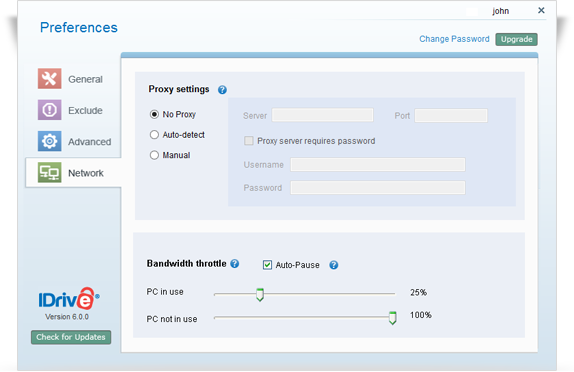
IDriveSync generally wants to use all of the available bandwidth to Sync and Upload your files as fast as possible. We understand that this can be inconvenient if you have work to do or are sharing a network, so we've built a Bandwidth Throttle feature into the IDriveSync app.

Right-click on the IDriveSync icon IDriveSync in the system tray/menu bar and select 'Preferences' from the drop down menu. If you click on the 'Network' tab, you will see two bars listed as 'PC in use' and 'PC not in use'. Set these bars to let IDriveSync know how much bandwidth to use when you are using the computer and how much to use when you are not using it.

Bandwidth

Can I sync my Outlook data files or QuickBooks files to the IDriveSync?

No, IDriveSync cannot sync Outlook (.pst /.ost) or QuickBooks (.qbw) files. This is because when Outlook or QuickBooks files are open, they are continuously being accessed. As a result, the IDriveSync app would be capturing incorrect data.

But, you can use IDrive.com to back up those files!

Why can't I see some files or folders on some devices that are visible on other devices?

Problems with syncing certain files may be caused by the following:

Windows and Mac operating systems each have a set of reserved characters which are not allowed for file/folder names. So, if you created a folder on Web or Mac OS with a character that is incompatible with Windows OS, you may have problems syncing that folder to that computer.

Avoid using the below set of characters, when creating a file/folder:

Platform Unsupported Characters
Windows \ / : * ? " < > | Space at end
Mac :
Web /
APIs /

How do I select which folders to sync to my computer?

Using the 'Selective Sync' feature, you can choose which folders you want synced to your computers. It's especially useful if you want to save local space on computers, or if you don't want your personal files (such as your photos folder) syncing to your work computer.

To enable Selective Sync, Right-click the IDriveSync icon IDriveSync in the system tray/menu bar and select 'Preferences' > 'Advanced' tab.

Selective sync

Windows and Mac operating systems each have a set of reserved characters that are not allowed for file/folder names. So if you created a folder on Web or Mac OS with a character that is incompatible with Windows OS, you may have problems syncing that folder to that computer.

Click the 'Selective Sync' button, and a window with a list of all the folders in your IDriveSync folder will appear. By default, all the folders are selected. Uncheck any folder that you don't need to sync to your computer. All the unselected folders in the 'Selective Sync' preferences will be removed from the IDriveSync folder on your computer.

Note: If you create a folder with the same name in the location of an unsynced folder, the new folder will appear with a gray circle and a minus sign overlay. This icon indicates the folder is not being synced to your IDriveSync account. If you resume syncing the original folder with the same name through 'Selective Sync' preferences, the new folder (and its contents) will appear alongside the old folder in your IDriveSync folder and on your online account. The newer folder will keep its name, while the older folder will say 'Selective Sync Conflict'. You can rename these as you wish.

Selective sync


درباره سیستم اشتراک گذاری فایل Idrive (زبان اصلی)

General

What is IDriveSync?

IDriveSync is software designed to make it easy to sync files and folders between your computers and mobile devices, in addition to sharing them with friends.

Ooooo! Tell me more!

What does syncing mean?

IDriveSync creates a special folder on your computer - the files and folders you place in this folder will be copied to the IDriveSync cloud, where it is held securely in our servers. The data is then available on all of the devices you have connected to your IDrive account (mobile devices, computers, etc.) This process makes the files accessible anywhere, at anytime. If you update a file on one device, IDriveSync will automatically update your other devices.

IDriveSync - Explorer

What is Timeline?

With Timeline view, you can view all the photos and videos in your account, uploaded from any device, chronologically by month. Items can be selected from within the Timeline view to share, move, copy, delete, etc. Clicking on any item will open the image in the Gallery view. The Timeline icon is present on the Home screen beside the search field.

IDriveSync - Timeline IDriveSync - Timeline

How can I recommend IDriveSync to my friends?

Login to your IDriveSync account and click 'Get free space'.

IDriveSync

Click the 'Refer Friends' option.

IDriveSync

Select contacts from Gmail / Yahoo or enter email addresses to send invites. You can also use the referral link to share it on social networks.

IDriveSync

How does the referral system work?

IDriveSync's referral system ensures benefits for you and your friends. By referring IDriveSync you can earn up to 18GB. The referred person needs to sign up via the link shared by the IDriveSync user (you, in this case). When your referral accepts and signs up for IDriveSync, both you and your referral will each earn 1 GB.

See! Sharing is caring!

What is Versioning?

Any time changes are made to a file, IDriveSync saves it as a new version. The 30 most recent versions of each file are kept and you can restore them at any time.

Older versions do not count towards your allocated storage space. Only the most recent version (the one that you see in your account currently) uses up space. None of the files listed as older versions take up space.

You can also access, restore, or download an older version. See How do I restore an earlier file version?

Do versions count as stored files?

Only the latest version of each file (the one you see in your account) takes up Sync space in your account. Earlier versions are kept without counting as stored data.

How do I restore an earlier file version?

On the web

  1. Login to IDriveSync.com and locate the file you wish to restore an earlier version of.
  2. Right-click the file and select "Versions" from the dropdown menu.
  3. You will be presented with the older versions of your file. Select the one you would like to make current by clicking the "Make this current" option located to the right of the file. This will replace this file in your IDriveSync account with this selected version.
  4. Instead of restoring an earlier version, you also have the option to keep the current version and simply download an older version. Select which version you'd like to download by clicking on the IDriveSync icon next to the file.

You can also choose the file that you would like to make current, by clicking 'Make this current' option located to the right of the file.

IDriveSync - Versions

On a computer

  1. Click/right-click the IDriveSync icon IDriveSync in the System Tray/Menu Bar and select 'My IDriveSync Folder' from the popup menu.
  2. Right-click the file you wish to restore an earlier version of and go to 'IDriveSync.' From the pop out menu, select 'Versions.'
  3. From here you can either:
    1. Click the Download button next to the version you would like to restore to your computer or
    2. Select 'Make this current' next to the file you would like to restore. ('Make this current' replaces the version in your IDriveSync account. Downloading puts a downloaded version of the file on your computer, but does not replace the version in your IDriveSync account.)
IDriveSync - Versions

You thought you'd lost that older version, but we were keeping it safe for you...

What happens if I work on the same file in different locations at the same time?

If you've opened a file in multiple locations at the same time, you may accidentally overwrite updates when you save. IDriveSync can't merge the changes, but you will always have access to earlier versions, just in case.

How do I view photos?

There are different ways to view photos.

Click a photo to view:
To open a photo for viewing, simply click a photo. The photo opens up and you can either view it on fullscreen or perform more actions like share, rotate, move, delete, and copy.

IDriveSync - Photo to View

View in Gallery:
Whenever photos or videos are present in a folder in your file manager, a 'Gallery' icon IDriveSync will appear beside the search field. This icon opens up the Gallery. Gallery view will display your photos and videos on a beautiful black background that was designed to improve your viewing experience. From the Gallery, multiple files can be selected for download, share, move, copy, etc.

Gallery

You can also access the Gallery by opening a picture and clicking the Gallery icon IDriveSync present below the image and alongside the other options.

Gallery


آموزش بکاپ گیری اتوماتیک از موبایل بوسیله Idrive (زبان اصلی)

Mobile Access

 
In case your query has not been addressed below, contact us through the feedback form for a prompt response.

Backup

faq How do I backup my device contents in one touch?
faq Can I backup contacts from my device?
faq How do I backup photos/videos from my device?
faq How to backup specific photos/videos from my device?
faq How do I backup calendar events from my device?
faq How do I backup SMS from my Android device?
faq How do I backup call logs from my Android device?
faq How do I backup apps from my Android device?
faq How do I backup other file types from my Android device?
faq How does 'Auto Camera Upload' work?

View and Access

faq What are the file/folder operations that I can perform on my device?
faq
faq Can I access my mobile backup data through web?
faq How do I view the files/folders shared with me?
faq Can I edit backed up files on my iPhone/iPad/Android mobile?
faq How do I search files in IDrive account from my mobile?

Share

faq How do I share my photos/videos?
faq How do I share my contacts?

Restore

faq How do I restore any device contents in one touch?
faq How do I restore photos/videos to my device?
faq How to restore iPhone/iPad/Android calendar events?
faq How do I restore contacts to my device?
faq How do I restore SMS to my Android device?
faq How do I restore call logs to my Android device?
faq How do I download backed up apps to my Android device?
faq How do I restore other file types to my Android device?
faq Where does IDrive store my restored files on my Android device?

How do I backup my device contents in one touch?

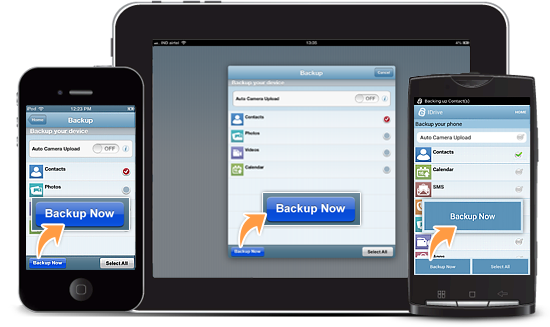
When you sign up to IDrive, you will have the option to backup all your device contacts, photos, videos, calendar events, SMS*, call logs* and apps* to your IDrive account with a single tap. You can customize the selection based on your requirement and tap on the Backup Now button.

For subsequent backups, tap on 'Backup' from the home screen and choose the contents for backup.

* Currently available only on Android devices.

Can I backup contacts from my device?

Yes, you can back up your contacts from the device to your IDrive account.
  1. Log into the IDrive Online app and tap on 'Backup'.
  2. Select 'Contacts' and tap on the 'Backup Now' button.
  3. All backed up contacts will be available in 'My iPhone folder'/'My Phone Backup' folder.
     

How do I backup photos/videos from my device?

  1. Log into the IDrive Online app and tap on 'Backup'.
  2. Select 'Photos' or 'Videos' to backup.
  3. Tap on the 'Backup Now' button.
  4. All backed up photos/videos will be available in 'My iPhone folder'/'My Phone Backup' folder.

Note: You may tap on Photos/Videos folder to select specific items from your device for backup. You can also view the backup progress.

How to backup specific photos/videos from my device?

  1. Login to your IDrive account and tap 'Backup'.
  2. Tap on 'Photos'/'Videos' folder.
  3. Select photos/videos you wish to backup.
  4. Tap 'Done', and then tap on the 'Backup Now' button.
  5. All backed up photos/videos will be available in 'My iPhone folder'/'My Phone Backup' folder.

How do I backup calendar events from my device?

  1. Log into the IDrive Online app, and tap on 'Backup'.
  2. Select 'Calendar' and tap on the 'Backup Now' button.
  3. All backed up calendar events will be available in 'My iPhone folder'/'My Phone Backup' folder.

How do I backup SMS from my Android device?

  1. Log into the IDrive Online app, and tap on 'Backup'.
  2. Select 'SMS' and tap on the 'Backup Now' button.
  3. All backed up SMS will be available in 'My Phone Backup' folder.

How do I backup call logs from my Android device?

  1. Log into the IDrive Online app, and tap on 'Backup'.
  2. Select 'Call Logs' and tap on the 'Backup Now' button.
  3. All backed up call logs will be available in 'My Phone Backup' folder.

How do I backup apps from my Android device?

  1. Log into the IDrive Online app, and tap on 'Backup'.
  2. Select 'Apps' and tap on the 'Backup Now' button.
  3. All backed up apps will be available in 'My Phone Backup' folder.

Note: IDrive does not backup any data or saved settings from the apps.

How do I backup other file types from my Android device?

  1. Log into the IDrive Online app, and tap on 'Backup'.
  2. Tap on 'Other Files' folder.
  3. Select the files to backup using the icon.
  4. Tap 'Done', and then tap the 'Backup Now' button.
  5. All backed up files will be available in 'My Phone Backup' folder.

How does 'Auto Camera Upload' work?

For iPhone/iPad

With 'Auto Camera Upload', you can automatically backup all the photos and videos from your device Camera Roll to IDrive account. Additionally, all live captures are also automatically backed up. On your first login, the 'Auto Camera Upload' option is set to OFF. You can also turn on or turn off from Settings in the home screen. All photos and videos automatically backed up are stored in My iPhone/iPad Backup > Photos/Videos > Camera Roll folder in your IDrive account.

For Android Mobile

With 'Auto Camera Upload', you can automatically backup all the photos and videos from your device Gallery > Camera folder to IDrive account. Additionally, all live captures are also automatically backed up. On your first login, the 'Auto Camera Upload' option is set to OFF. You can either turn on or turn off this option from Backup in the home screen. All photos and videos automatically backed up are stored in My Phone Backup > Photos/Videos folder in your IDrive account.

What are the file/folder operations that I can perform on my device?

You can perform all file/folder operations like cut, copy, rename, delete and create a new folder on your mobile device.

Can I access my IDrive account on my iPhone/iPad/Android mobile?

Yes, you can access your IDrive account on your iPhone/iPad/Android mobile.

  1. Download and install the IDrive Online app on your iPhone/iPad/Android mobile.
  2. Login to the application using your IDrive credentials. If you do not have an IDrive account, sign up for a new account.

You can browse, search and access all backed up files/folders in your IDrive account. In case, you have a private encryption key set for your IDrive account, enter the key to view your backed up files.


Can I access my mobile backup data through web?

Yes. Login to your IDrive account via any web browser. Select the folder with your phone name. Now, you can access Calendar, Contacts, Photos, Videos, SMS*, Call Logs* and Apps* backed up to your IDrive account.

* Currently available only on Android devices.

How do I view the files/folders shared with me?

You can view the files/folders shared with you via web interface. Click on the share link received via email to view and download the shared files.

Can I edit backed up files on my iPhone/iPad/Android mobile?

No, you cannot edit your backed up files on your iPhone/iPad/Android mobile. However, you can view the files in your IDrive account.

How do I search files in IDrive account from my mobile?

You can search and preview any file in your IDrive online account from mobile.

For iPhone/iPad

1. Log into the IDrive Online app and tap on 'Access and Restore'.
2. Enter the complete or part of the file name in the search bar and tap 'Search'.

For Android

1. Log into the IDrive Online app and tap on 'Access and Restore'.
2. Tap on the menu icon and select 'Search'.
3. Enter the complete or part of the file name in the search bar and tap Enter.

How do I share my contacts?

To share contacts with friends or associates via the IDrive Online app, follow the below instructions:

For iPhone/iPad

  1. Log into the IDrive Online app and tap on 'Access and Restore'.
  2. Select 'My iPhone/iPad Backup' or any other device folder.
  3. Tap on 'Contacts' folder and then tap on icon.
  4. Select the contacts to share.
  5. Tap on the 'More' button and choose 'Share'.

For Android

  1. Log into the IDrive Online app and tap on 'Access and Restore'.
  2. Select 'My Phone Backup' or any other device folder.
  3. Tap on 'Contacts' folder, and then tap on  icon.
  4. Select contacts to share and tap on icon.

To share a specific contact,

  1. Tap on 'Contacts' folder.
  2. Select contacts to share by using the icon.
  3. Tap on the 'Share' button.

Note: The Share option is available only for IDrive accounts with default encryption.

How do I share my photos/videos?

To share photos/videos with friends or associates via the IDrive Online app, follow the below instructions:

For iPhone/iPad

  1. Log into the IDrive Online app and tap on 'Access and Restore'.
  2. Select 'My iPhone/iPad Backup' or any other device folder.
  3. Tap on 'Photos'/'Videos' folder and tap on icon.
  4. Select the photos/videos to share.
  5. Tap on the 'More' button and choose 'Share'.

For Android

  1. Log into the IDrive Online app and tap on 'Access and Restore'.
  2. Select 'My Phone Backup' or any other device folder.
  3. Tap on 'Photos'/'Videos' folder.
  4. Tap menu and choose 'Edit'.
  5. Select photos/videos to share by using the icon.
  6. Tap on icon.

Note: The Share option is available only for IDrive accounts with default encryption.

How do I restore any device contents in one touch?

  1. Log into the IDrive Online app and tap on 'Access and Restore'.
  2. Tap on corresponding to the folder you wish to restore.
     
Note: Only files compatible to your iOS device will be restored.

How do I restore photos/videos to my device?

For iPhone/iPad

  1. Log into the IDrive Online app and tap on 'Access and Restore'.
  2. Select 'My iPhone/iPad Backup' or any other device folder.
  3. Tap on corresponding to the 'Photos'/'Videos' folder to restore all your photos/videos.

To restore specific photos/videos,

  1. Tap on 'Photos'/'Videos' folder, and then tap on icon.
  2. Select the photos/videos to restore and tap on the 'Restore' button.


For Android Mobile

  1. Log into the IDrive Online app and tap on 'Access and Restore'.
  2. Select 'My Phone Backup' or any other device folder.
  3. Tap on corresponding to the 'Photos'/'Videos' folder to restore all your photos/videos.

To restore specific photos/videos,

  1. Tap on 'Photos'/'Videos' folder and long press on a photo/video.
  2. Select photos/videos to restore by using the icon.
  3. Tap on the 'Restore' button.

How to restore iPhone/iPad/Android calendar events?

For iPhone/iPad

  1. Log into the IDrive Online app and tap on 'Access and Restore'.
  2. Select 'My iPhone/iPad Backup' or any other device folder.
  3. Tap on corresponding to the 'Calendar' folder to restore all your calendar events.

To restore specific calendar events,

  1. Tap on 'Calendar' folder, and then icon.
  2. Select the calendar events to restore and tap on the 'Restore' button.


For Android Mobile

  1. Log into the IDrive Online app, and tap on 'Access and Restore'.
  2. Select 'My Phone Backup' or any other device folder.
  3. Tap on corresponding to the 'Calendar' folder to restore all your calendar events.
     
To restore specific calendar events,

  1. Tap on 'Calendar' folder and long press on a calendar event.
  2. Select calendar events to restore by using the icon.
  3. Tap on icon.

How do I restore contacts to my device?

You can restore your device contacts from your IDrive account.

For iPhone/iPad

1. Log into the IDrive Online app and tap on 'Access and Restore'.
2. Select 'My iPhone/iPad Backup' folder or any other device folder.
3. Tap on corresponding to 'Contacts' folder to restore all your contacts.

To restore specific contacts,

  1. Tap on 'Contacts' folder, then tap on icon.
  2. Select the contacts to restore and tap on the 'Restore' button.


For Android Mobile

  1. Log into the IDrive Online app and tap on 'Access and Restore'.
  2. Select 'My Phone Backup' or any other device folder.
  3. Tap on corresponding to 'Contacts' folder to restore all your contacts.

To restore specific contacts,

  1. Tap on 'Contacts' folder and long press on a contact.
  2. Select contacts to restore by using the icon.
  3. Tap on icon.

Note: To restore earlier versions of your contacts, tap on 'Contacts' > 'Version' and choose the desired version.

How do I restore SMS to my Android device?

  1. Log into the IDrive Online app and tap on 'Access and Restore'.
  2. Select 'My Phone Backup' or any other device folder.
  3. Tap on corresponding to 'SMS' folder to restore.

To restore specific SMS,

  1. Tap on 'SMS' folder and long press on a message.
  2. Select messages to restore by using the icon.
  3. Tap on icon.
     

How do I restore call logs to my Android device?

  1. Log into the IDrive Online app and tap on 'Access and Restore'.
  2. Select 'My Phone Backup' or any other device folder.
  3. Tap on corresponding to 'Call Logs' folder to restore.

To restore specific call logs,

  1. Tap on 'Call Logs' folder and long press on a log.
  2. Select logs to restore by using the icon.
  3. Tap on icon.

How do I download backed up apps to my Android device?

  1. Log into the IDrive Online app and tap on 'Access and Restore'.
  2. Select 'My Phone Backup' or any other device folder.
  3. Tap on corresponding to 'Apps' folder to restore.

To restore specific apps,

  1. Tap on 'Apps' folder and long press on an app.
  2. Select apps to restore by using the icon.
  3. Tap on 'Restore' button.

How do I restore other file types to my Android device?

  1. Log into the IDrive Online app and tap on 'Access and Restore'.
  2. Select 'My Phone Backup' or any other device folder.
  3. Tap on corresponding to 'Other Files' folder to restore.

To restore specific other files,

  1. Tap on 'Other Files' folder and long press on a file.
  2. Select files to restore by using the icon.
  3. Tap on 'Restore' button.

Where does IDrive store my restored files on my Android device?

The files and folders restored from IDrive is stored in SD Card > IDrive_Download folder on your device.


آموزش تنظیمات امنیتی سامانه بکاپ گیری iDrive (زبان اصلی)

Security

 
In case your query has not been addressed below, contact us through the feedback form for a prompt response.
 
faq How does IDrive secure my data?
faq Can I change my private encryption key for my existing IDrive account?
faq The site does not show pad-lock related to SSL encryption when I try to login. Is my login secure?
faq Where is IDrive data stored?
faq Does IDrive keep another backup of my data?
faq I have forgotten my private encryption key. What should I do?
faq What is the difference between default encryption and private encryption?


How does IDrive secure my data?

IDrive uses industry standard 256-bit AES encryption on transfer and storage. Data stored at our world-class data centers is encrypted using the encryption key (known only to you in case you set the private encryption key).

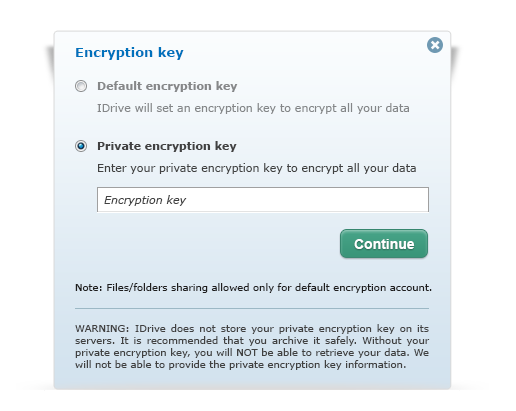
WARNING: IDrive does not store your private encryption key on its servers. It is recommended that you archive it safely to backup and restore your data. However, if you opt for the Default encryption key, you need not remember it.

remote backup drive

Can I change my private encryption key for an existing IDrive account?

No. Once the encryption key is assigned to your account it cannot be changed. However, you can create a new account and start using it with an encryption key of your choice.


The site does not show pad-lock related to SSL encryption when I try to login. Is my login secure?

Yes, your login is secure as by default we use secure HTTP protocol, thus adding the security capabilities of SSL to standard HTTP communications.

IDrive uses 256-bit AES encryption to transfer your Username and Password when you enter the login credentials. This ensures your details are secure during transfer since the information cannot be viewed by anyone as clear text.

However, when you just navigate to http://www.idrive.com, the site is not secure as with almost any site on simple navigation.


Where is IDrive data stored?

The IDrive applications and data are hosted at multiple world-class data centers. The data centers provide the physical environment necessary to keep the servers up and running 24x7.

These world-class facilities are custom designed with raised floors, HVAC temperature control systems with separate cooling zones, and seismically braced racks. They offer the widest range of physical security features, including state-of-the-art smoke detection and fire suppression systems, motion sensors, and 24x7 secured access, as well as video camera surveillance and security breach alarms.

We also have periodic third party reviews of our network infrastructure to check for known application and service vulnerabilities.


Does IDrive keep another backup of my data?

Yes, your data resides on RAID-protected industry leading storage devices with multiple levels of redundancy. In addition, data is periodically backed up to another set of devices for additional security.


I have forgotten my private encryption key. What should I do?

The private encryption key is known only to you and no one else. Even the IDrive personnel do not have access to this key as it is not stored in the IDrive servers. You must try to recollect your private encryption key to retrieve your account data.


What is the difference between default encryption and private encryption?

Both, default encryption and private encryption, use the 256-bit AES encryption to encrypt your data. Default encryption uses a system generated key, whereas for private encryption, a user-defined key is used.

IDrive does not store your private encryption key on its servers. It is recommended that you archive it safely to backup and restore your data. However, if you opt for the Default encryption key, you need not remember it.


مدیریت کاربر های زیر مجموعه در سیستم بکاپ گیری IDrive (زبان اصلی)


Sub-accounts

 
In case your query has not been addressed below, contact us through the for a prompt response.
 
faq What are sub-accounts and how can I avail it?
faq How do I create and update my sub-account?
faq How do I manage all my sub-accounts?
faq
faq Can I view the data stored in my sub-accounts?
faq What happens if a sub-account exceeds the backup quota allotted to it?
faq What happens when I cancel a sub-account?
faq If I cancel my main account, what will happen to my sub-accounts?
   

What are sub-accounts and how can I avail it?

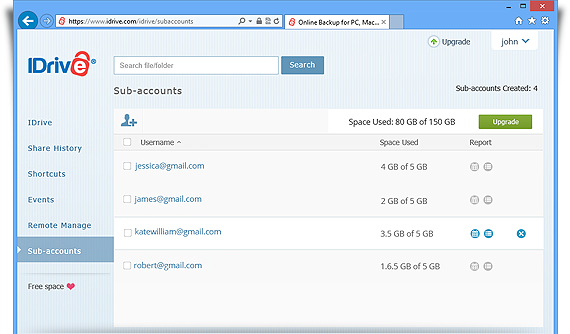
A sub-account is just like a regular IDrive account that you can create using your online storage space. Pro Business user can create unlimited sub-accounts for associates or business departments to backup data.

IDrive


How do I create and update my sub-account?

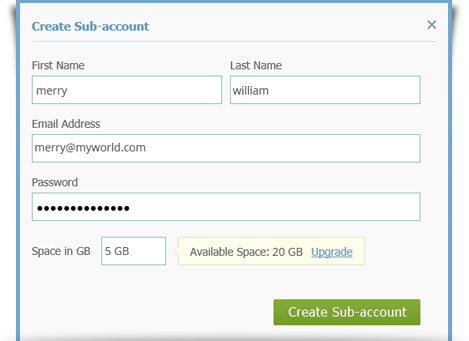
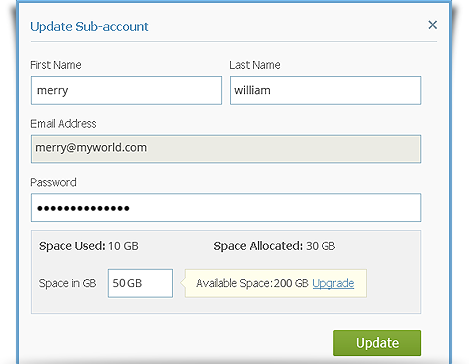
You can create and update your sub-accounts by logging into your account from any web browser.

Creating a sub-account
Select the 'Sub-accounts' tab on the Navigation pane. Click IDrive, fill out the 'Create Sub-account' form.

IDrive


Updating a sub-account
From the Sub-account tab, choose the Username of the sub-account to be updated. Edit the information as required and click 'Update'.

IDrive


How do I manage all my sub-accounts?

You can manage all your sub-accounts from the 'Sub-accounts' tab in your IDrive account.

  • View summarized status of scheduled backups for each sub-account by clicking IDrive
  • View history of the activities performed by the sub-account user in a browser session by clicking IDrive
  • Cancel a sub-account by clicking IDrive corresponding to the 'Username'.


Can I create multiple sub-accounts using the same email address?

Yes. When you try to create multiple sub-accounts using the same email address, you'll be prompted to enter a unique username to identify among your accounts.


Can I view the data stored in sub-accounts?

No. You cannot view the data stored in sub-accounts. To view a particular sub-account's data, login using its email/username and password.


What happens if a sub-account exceeds the backup quota allotted to it?

The backups of the sub-accounts will continue as normal, even if the backup quota allocated to it exceeds. The nominal overuse charges will apply only when the main account quota exceeds.


What happens when I cancel a sub-account?

When you cancel a sub-account, all the associated files will be permanently deleted. The sub-account user will no longer be able to access or backup data to that account.


If I cancel my main account, what will happen to my sub-accounts?

Your sub-accounts exist within your account. So if you cancel your account, then your sub-accounts will also get cancelled. All the files and folders in your main account and sub-accounts will be deleted permanently.


آموزش مدیریت بکاپ گیری Idrive با دسترسی به پانل اینترنتی (زبان اصلی)

Web access and Account management

 
In case your query has not been addressed below, contact us through the feedback form for a prompt response.
 
faq What is the IDrive web client?
faq Can I upload files and folders to my account?
faq How do I update my profile?
faq What is Gallery View?
faq Does IDrive support video streaming?
faq How do I cancel my subscription?
faq Is it possible to manage my Backup set and schedule backup jobs via the web interface?
faq What is the Desktop Backup Report?
faq How do I view the command log report?
faq What are Events?
faq How do I restore a previous version of my backed up file via the web?
faq Is it possible to restore the files that are accidentally deleted from my IDrive account via the web?
faq Is there a size limit on files to download from IDrive, using any web browser?


What is the IDrive web client?

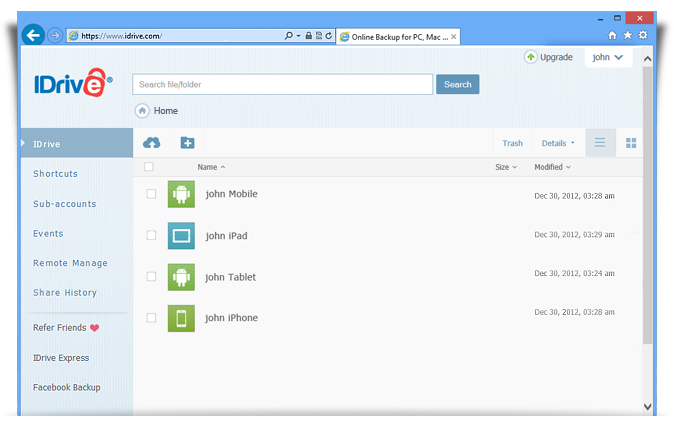
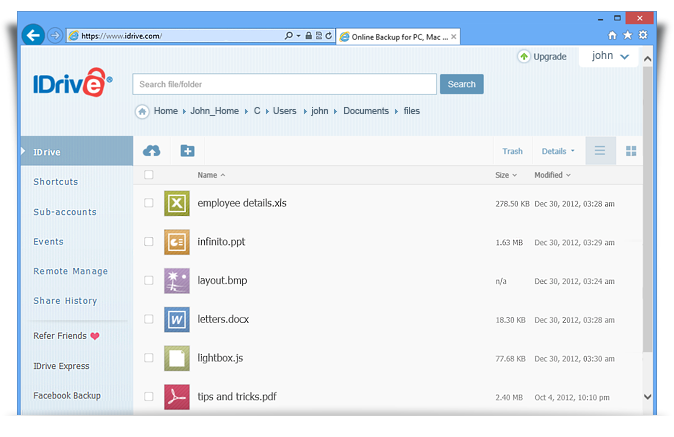
The IDrive web client helps you upload, view, search, and restore files directly from the web. Use your user-name and password to login at www.idrive.com. You can share data with friends, view backup status reports, manage your account subscription, etc.

View backed up files and folders

Once logged in, computers from where your data is backed up are displayed. Click on the computer/drive name to view all your backed up files and folders. The same folder structure, as on your local computer is maintained.

Restore your data

Steps:

  • Click on the file that you want to restore to your local computer.
  • To restore any older version of a backed up file, click the option icon alongside the file that you wish to restore and select 'Version'.
  • Provide the 'Encryption Key' (required only once for a session). In case you had opted for the default key, you can directly restore files to your local computer.

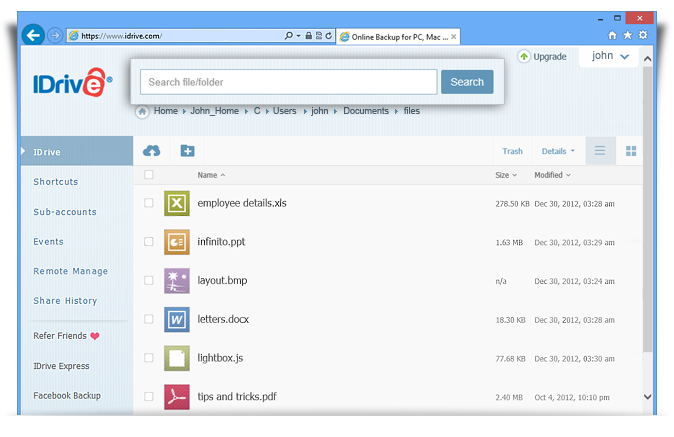
Search backed up files and folders

In the 'Search' box, provide the name of the file or folder that you wish to find in your account.


Can I upload files and folders to my account?

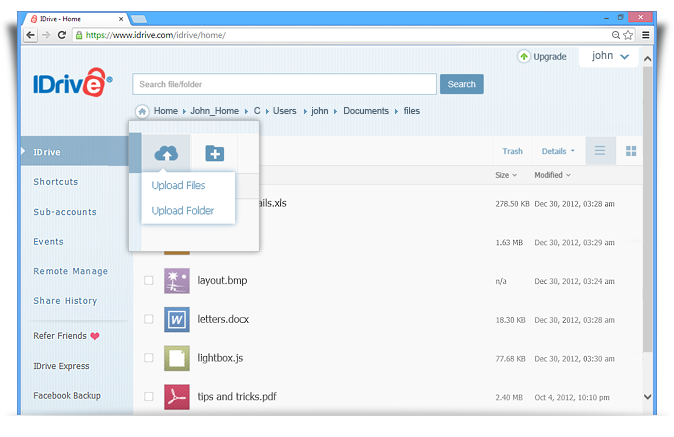
Yes, you can easily upload files and folders to your IDrive account. Login using any web browser and do one of the following,

  • Drag and drop files / folders from your computer to IDrive account
    Or,
  • Mouse over on , you will have the option to choose 'Upload File' or 'Upload Folder'.
     

Note:
- Currently, you can upload folders only on Google Chrome.
- Drag and drop is supported only on Google Chrome and Mozilla FireFox.


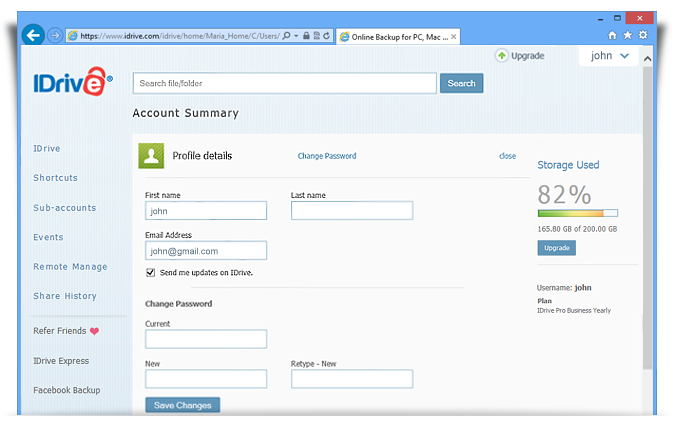
How do I update my profile?

Login to your account via the web and click on your user-name, on the top right corner of the screen. Select 'Profile' to change your name, password and email address.


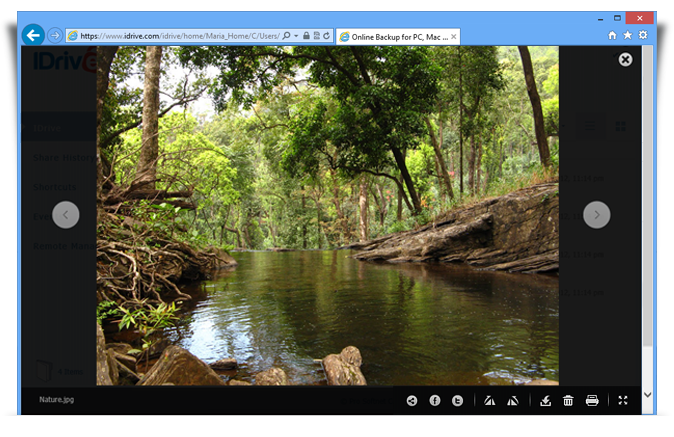
What is Gallery View?

The Gallery View feature improves your viewing experience for photos.

You can share (email, Facebook, Twitter), rotate, download, delete, and print your images, directly from the Gallery View.
 

IDrive for windows


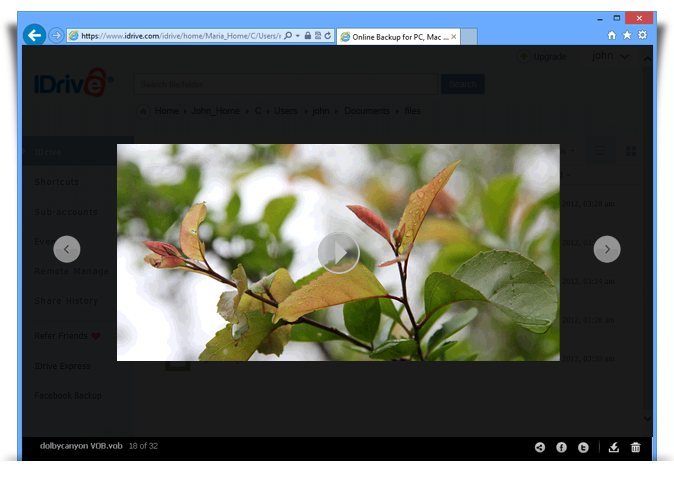
Does IDrive support video streaming?

Yes, you can stream video files directly from your IDrive account using any web browser. You can play MP4, WebM, FLV media file formats.

IDrive for windows


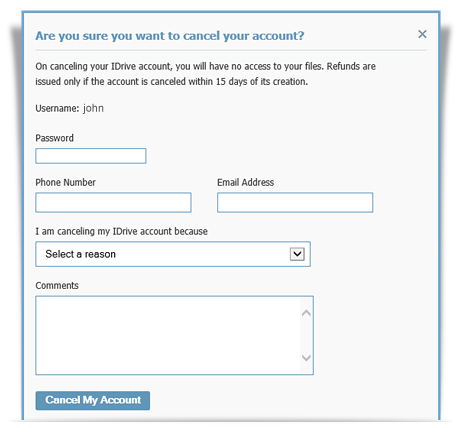
How do I cancel my subscription?

To cancel your account,


  1. Log-in to your IDrive account and click on your user-name, on the top right corner of the screen.
  2. Select Account and click the Cancel your account option from the summary displayed.
  3. Enter your details and select the reason for cancellation from the dropdown in the form that is displayed.
  4. Click Cancel My Account button. You will receive an email confirming the cancellation of your account.


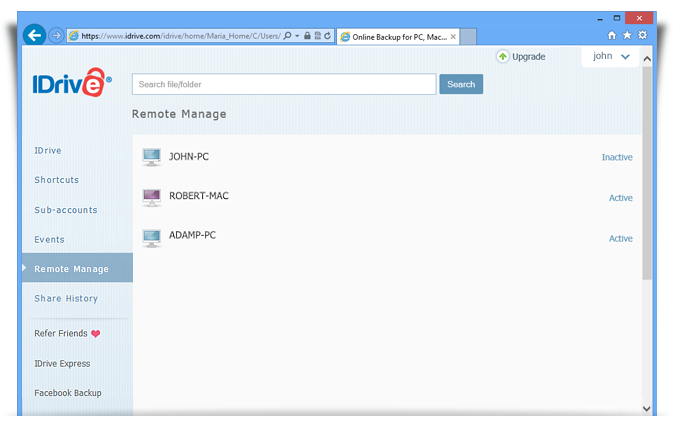
Is it possible to manage my Backup set and schedule backup jobs via the web interface?

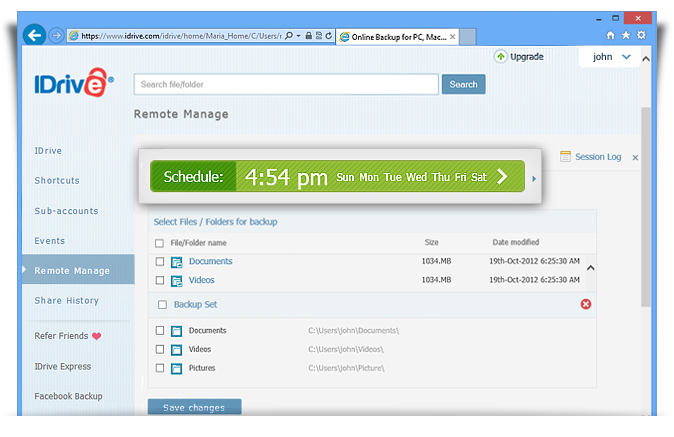
Yes. You can manage your Backup set, schedule backup jobs and view detailed logs via the IDrive web interface using any web browser. For this, login to your account via any browser and click the Remote Manage option.


Backup Manager

You can perform the following functions:

Scheduler

Add data to the Backup set

  1. Select the files / folders to be backed up, using the check boxes, under the Backup Set section.
  2. Click 'Update Backup set' to update your Backup set.

Delete data from the Backup set

  1. Under the Backup Set section, clear the check boxes for the files / folders that you wish to remove from your Backup Set.
  2. Click 'Update Backup set' to update the Backup set.

Schedule a Backup

  1. Click the Schedule button. The screen with configurable scheduling parameters is displayed.
  2. Select the backup date, time, frequency and notification type among other options.
  3. Click 'Update Scheduler' to update the scheduled backup details.

View Session Log

  1. Click the View Session Log button. A list of session logs is displayed.
  2. Click the specific session log that you want to view.

Note: The Remote Manage option is enabled by default in the IDrive application. You can disable this option from the IDrive Tray.


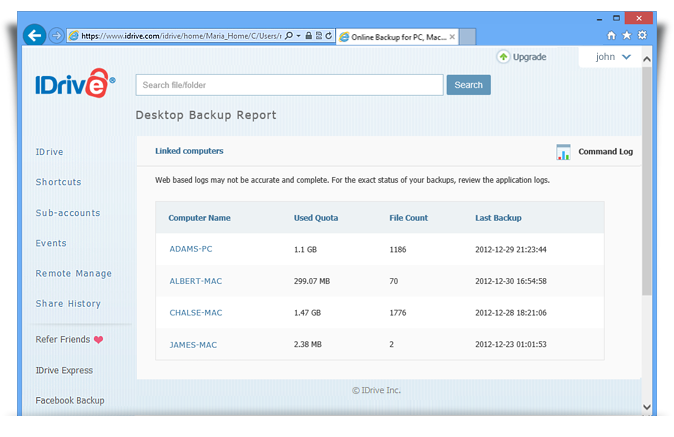
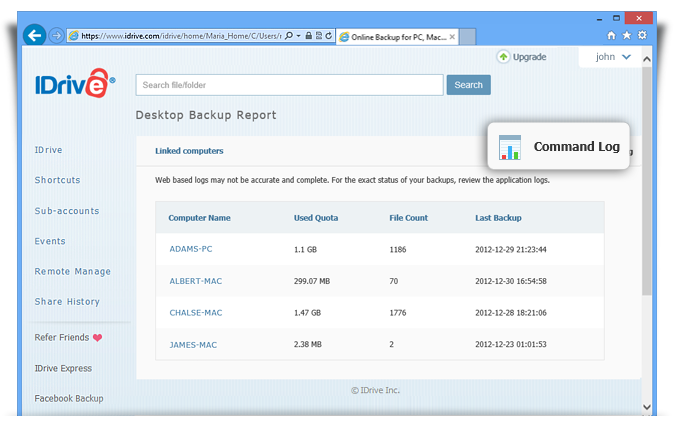
What is the Desktop Backup Report?

'Desktop Backup Report' summarizes the status of the scheduled backups for your IDrive account. By default, a report for the last seven days is displayed.
 

Backup Status Report


How do I view the command log report?

IDrive's Command Log feature maintains a list of all operations like Upload, Download, Rename, Delete etc., performed in your account using the desktop application or the web interface or the IDrive APIs.

To view the command log report,

  1. Click on your user-name on the top right corner.
  2. Click Desktop Backup Report, under Reports.
  3. Click on the 'Command Log' icon.
  4. By default, all activities performed in the current month are displayed.
  5. Click on the view option under “Details”. You can also download the complete details by using the download option.


Activity Log Report


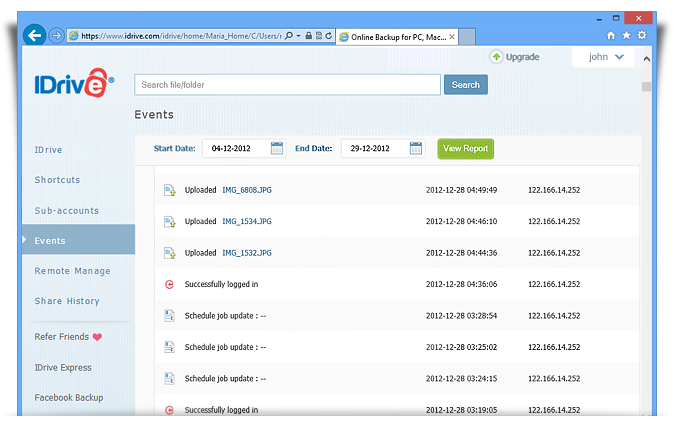
What are Events?

The Events feature provides the history of the activities performed in your IDrive account in a browser session. You can track login / logout activities, file and folder operations like upload, download, share, etc. The date and time of the activity and the IP address from where the activity originated is also listed.
To view the browser based activities,

  1. Click on your user-name on the top right corner.
  2. Click Events, under Reports.
  3. By default, all activities performed in the current day are displayed.
  4. To view previous details, select the Start Date and End Date and click View Report.

Events


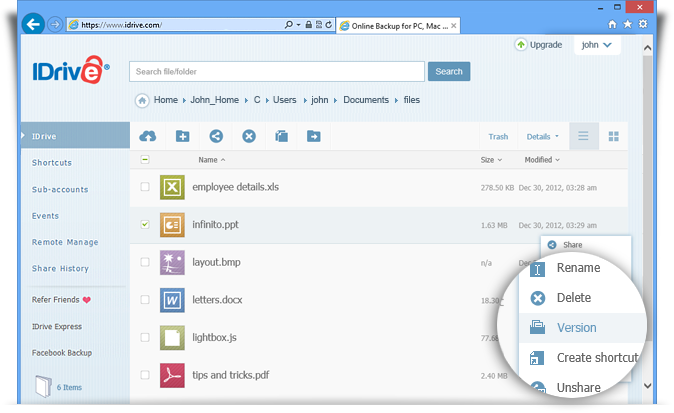
How do I restore a previous version of my backed up file via the web?

To restore previous version of a file via the web:


version
  1. Login to your IDrive account.
  2. On the Web-Manager main page click the option icon alongside the file that you wish to restore and select “Version”.

  3. The 'Versions' screen is displayed. Select the desired version and click on 'Download’.
  4. Choose the destination in your local computer to restore.


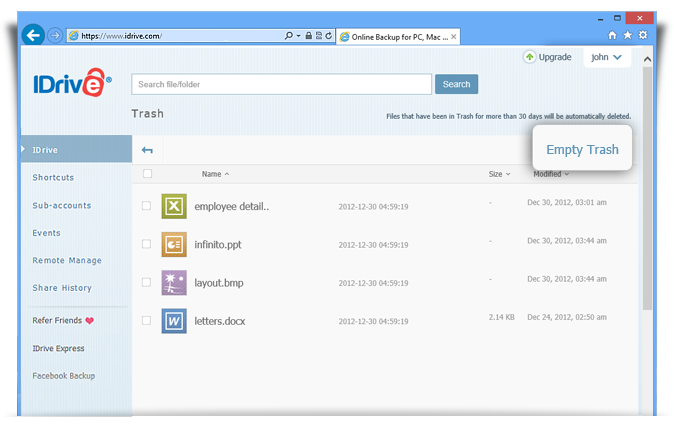
Is it possible to restore the files that are accidentally deleted from my IDrive account via the web?

Yes. All files deleted from your account will be moved to Trash. You can either move your files to the original location in your IDrive account or restore them to your local computer. The files present in Trash will automatically get deleted after a 30 day period.

To restore / move your files from Trash, follow these steps:

  1. Login to your IDrive account and click the Trash icon.
  2. Select the check box and click the 'Put Back' button to move the files to the original location in your IDrive account. OR restore the files to the desired location in your local computer. You can also delete a file permanently from Trash, if it is no longer required.
Trash
faq
 

Is there a size limit on files to download from IDrive, using any web browser?

Yes, you can download an individual file up to 2 GB in size from your IDrive account, using any web browser.

We recommend using the IDrive desktop application to download/restore a larger file.


Windows

 
In case your query has not been addressed below, contact us through the feedback form for a prompt response.

Backup

faq When I login to my IDrive account for the first time on a machine, I notice that some folders have already been scheduled for backup. Why?
faq I see some files / folders marked in red color on the top pane of the main application screen. Why?
faq How do I take an immediate (interactive) backup of my data?
faq How do I schedule a backup?
faq Is there a way to receive an alert in case my scheduled backup fails?
faq How do I manage my scheduled backup jobs?
faq Does IDrive perform scheduled backups in ‘Standby’ mode?
faq Can I view the status of my scheduled backups?
faq Is it possible to view all the scheduled backup jobs of all my IDrive accounts on my computer using IDrive?
faq What is incremental backup?
faq How do I change the default backup location?
faq If I am backing up data from multiple computers, do I need to change the backup location?
faq How can I exclude certain files/folders from being backed up?
faq What is the Bandwidth Throttle feature?
faq What is Bandwidth Test feature?
faq Can I backup Mapped / USB / External drives?
faq Will IDrive backup my data even if the computer is logged off?
faq Can I backup my open / locked files?
faq I am unable to open my Outlook email client during the backup of my Outlook pst files. I get an error that indicates that the file may be in use. Why?
faq Will a missed scheduled backup take place when the computer is restarted after the scheduled time?
faq How do I delete data from my Backup set?
faq How do I add items to the IDrive Backup set from Windows Explorer?
faq Do I need to restart my computer after installing IDrive?

Restore

faq How do I restore my backed up data in case my system crashes (or to a new computer)?
faq What is Versioning? Does it impact the available quota (storage space in my account)?
faq How do I view the versions of a file stored in my account?
faq How do I restore the latest version of a file?
faq How do I delete data from my account?
faq I have backed up data on multiple computers. How do I restore?

Cleanup

faq What is Archive Cleanup?
faq What is Periodic Cleanup?

General

faq Does IDrive remove my account files when they are deleted from my computer?
faq I deleted files from my IDrive account. Is it possible to restore the files/folders that are deleted accidentally?
faq I want to restore the previous version of a file from Trash. Is it possible?
faq If I keep on performing backups, will I use up my quota quickly?
faq I received a quota overuse email. What should I do?
faq Can I halt my backups at a particular time?
faq Does IDrive support backup and restore of files larger than 2 GB?
faq How do I view my Backup/Restore activities via the application?
faq Can I share file(s) / folder(s) directly from IDrive?
faq I need a walkthrough of the IDrive desktop application interface.
faq How should I avoid backing up a file? Should I simply clear the corresponding check boxes in the main window, or should I right-click the file or the folder and click the ‘Exclude this item from backup’ option? What’s the difference?
faq I have backed up certain folders (containing multimedia, etc.) which are not going to change. Can I remove them from my Backup set, presuming that the backed up data wouldn't be affected?
faq In my backed up files, I see a numbers of files called ‘desktop.ini’. Do I actually need these?
faq I have included files from a CD and DVD in my backup set. After I back them up, can I run subsequent backups without inserting the CD and DVD while my backup set still refers it?
faq What are the options available in IDrive Tray?


When I login to my IDrive account for the first time on a machine, I notice that some folders have already been scheduled for backup. Why?

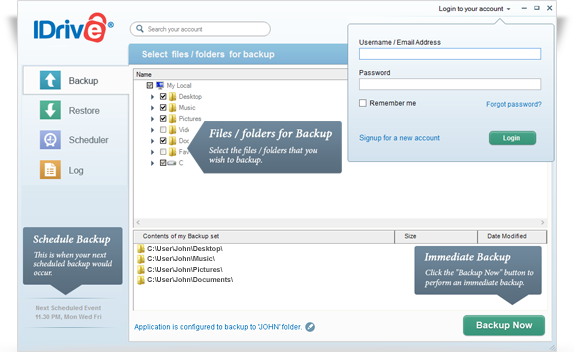
IDrive is an automated online backup application. Hence, critical folders like Desktop, Documents, Pictures, Videos and Music are pre-selected for backup with the scheduled time set to 'off-peak hours'.

If these settings are not altered, the application commences the backup of the default Backup set once the scheduled backup time is reached.


You can modify the settings as desired.

To change the day, time, and frequency for the scheduled backup job, click the 'Scheduler'.

Also, you can select the desired files / folders / drives (under 'My Local') that you want to backup immediately and click the 'Backup Now' button.

I see some files / folders marked in red color on the top pane of the main application screen. Why?

The files / folders marked in red under 'My Local' are excluded from backup.

To include them in the Backup set, click on your name at the top and select ‘Preferences’; choose the 'Exclude files and folders' tab. Clear the check boxes for the files / folders that you want to backup.

How do I take an immediate (interactive) backup of my data?

Select the desired files / folders / drives (under 'My Local') that you want to backup immediately and click the 'Backup Now' button.

How do I schedule a backup?

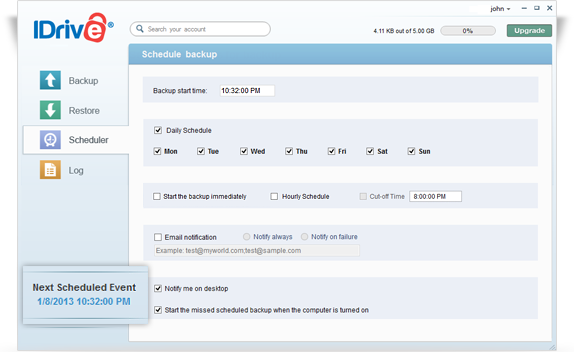
To schedule a backup, login to your IDrive account and click the 'Scheduler' tab.

You can schedule your backup start time. Select your desired day(s) of backup in a week or schedule it on a daily basis.


It also has the following options:

Start the backup immediately: Take an immediate backup of your files / folders.

Cut-Off time: Set the time at which your scheduled backup should stop.

Email notification: Select this option to receive email notifications on the status of the scheduled backup job. Enter the email address on which you want to receive the notifications.

Notify me on desktop: Receive notifications on the desktop regarding the status of scheduled backup job.

Start the missed scheduled backup when the computer is turned on:Select this option to resume a missed scheduled backup job due to the computer being turned off.

Is there a way to receive an alert in case my scheduled backup fails?

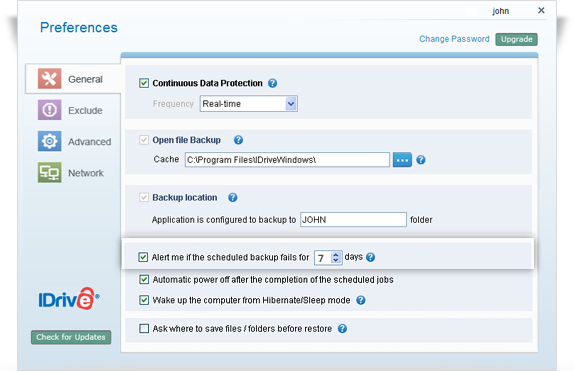
Yes. Click on ‘Preferences’ > ‘General’ tab from the IDrive tray. Select the 'Alert me if the scheduled backup fails for 7 days' check box to receive a desktop alert in case your backup has not taken place. By default, it is set to seven days.


How do I manage my scheduled backup jobs?

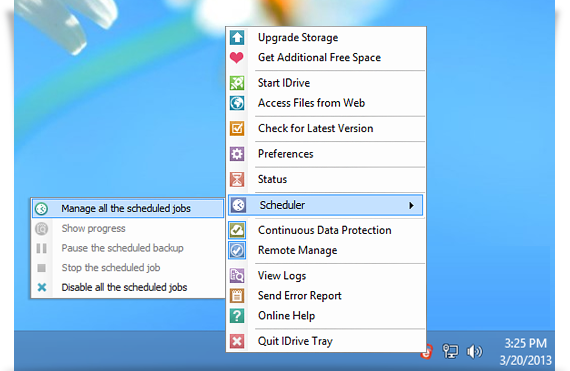
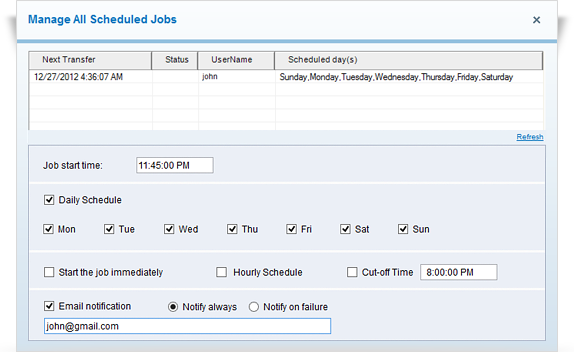
You can manage your scheduled backup jobs by clicking 'Scheduler' > 'Manage all the Scheduled jobs' option from the IDrive tray menu.


You can change the frequency and options pertaining to a specific backupset for an account.

Edit the backup jobs in the following ways:

1. Highlight any entry.
2. Edit the time, day and other options.

Delete a scheduled backup entry in the following ways:

1. Highlight any entry.
2. Right click and select the 'Delete' button.

Stop the scheduled backup in the following ways:

1. Highlight any entry where the status is 'In Progress'.
2. Right click and select the 'Stop' icon.
3. Go to 'Status' screen on the IDrive Tray menu and click the 'Stop Transfer' icon.


Does IDrive perform scheduled backups in 'Standby’ mode?

No. This is because the remote access connections are disconnected without any prompting to disconnect manually before the computer goes into the 'Standby' mode. This applies to any remote access connection including connections to Internet service providers (ISPs) and private networks. This behavior is by design of Windows, by default.

Can I view the status of my scheduled backups?

Yes, you can view the status of your scheduled backups using the IDrive ‘Status’ option that is active in your system tray once you install IDrive.

You can also view the status of the scheduled jobs. Click the 'Log' button to see the recent session-wise log files.

Is it possible to view all the scheduled backup jobs of all my IDrive accounts on my computer using IDrive?

Yes. For this, right-click the IDrive tray icon and select 'Scheduler' > 'Manage all the Scheduled jobs'. In the window that is displayed, you can view the list of scheduled backup jobs of all IDrive accounts on the local computer.

What is incremental backup?

IDrive transfers only the modified portions of your files after full initial backup. Incremental backup is a default feature.

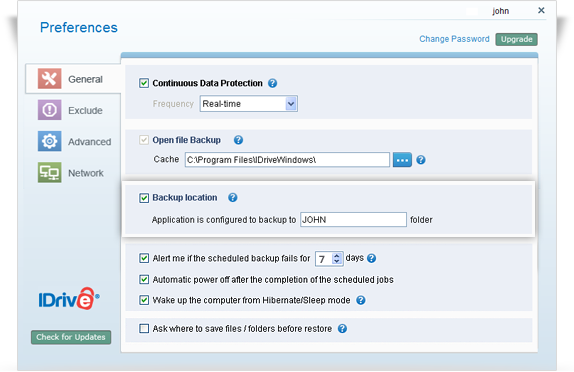
How do I change the default backup location?

IDrive by default creates a unique folder with the name of the computer to backup data to your IDrive account.

To change the default backup location,

  1. Right click on IDrive Tray.
  2. Select Preferences > General.
  3. Under Backup location, you can enter a folder name of your choice.

Alternatively, you can change the default backup folder by clicking the icon from the Backup tab.

If I am backing up data from multiple computers, do I need to change the backup location?

No, you do not have to change the backup location as IDrive by default creates a unique folder with the computer name, to prevent data overlap if you are backing up data from multiple computers.

However, if the computer names are same, we recommend you to use the Backup location feature to change the default backup location, to prevent data overlap.

How can I exclude certain files/folders from being backed up?

IDrive allows you to exclude files / folders from being backed up during interactive and scheduled backup.

You can exclude files / folders in the following ways:


Via Main Window

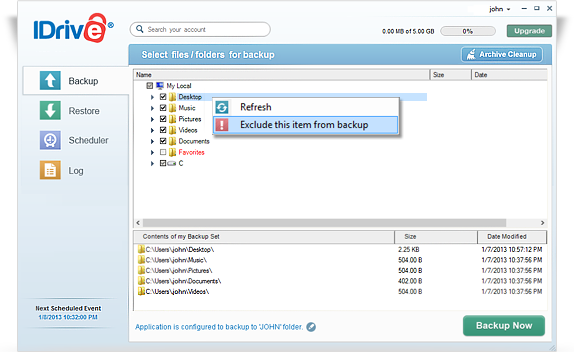
Select a file / folder under 'My Local', right click and choose 'Exclude this item from backup'.


You can view the excluded files/folders from the 'Contents of my Backup Set' pane. To do this, right click on any file/folder and click on 'List excluded items'. The 'Excluded files/folders list' window is displayed. Right click to remove files/folders from exclusion.


Via Preferences Screen

Exclude files / folders based on full path name

For this, click on your name at the top and select ‘Preferences’; choose the ‘Exclude’ tab.

  1. Right-click anywhere on the 'Files / Folders with full path names' list box and click the desired option from the sub-menu.


Note : Folder and files excluded by default by the application cannot be removed from the list.


Exclude files / folders based on partial name

  1. Right-click anywhere on the 'Files / folder with partial names' box and click the desired option from the sub-menu.
  2. In the dialog box that is displayed, enter the partial name of the folder / file that you want to exclude from backup and enter.


The selected folders / files visible on the 'Exclude files / folders' pane and will not be considered for backup.

Note: To backup an item which is on the exclude list, right-click the corresponding list box and click 'Delete' from the sub-menu.
 

What is the Bandwidth Throttle?

The Bandwidth Throttle lets you set the Internet bandwidth to be used by the IDrive application for backups. By default, the bandwidth throttle value is set at 100%.

You can set Auto Pause option, which makes intelligent guesses on bandwidth throttle during backup operation to enable optimum desktop experience with the following options:

PC in use: This option lets you set the bandwidth to be used by IDrive for backups, when it is in use. By default, it is set to 25%. This allows other applications to run without hindrance.

PC not in use: This option lets you set the bandwidth to be used by IDrive for backups when it is not in use. By default, it is set to 100%.

Note: The percentage set for Bandwidth Throttle is applicable for both scheduled and interactive backups.


What is Bandwidth Test feature?

Using 'Bandwidth Test' feature, you can find out the upload / download speed and an approximate time that it will take to backup / restore 1 GB of data to your IDrive account. To perform the test, click on your username at the top and go to ‘Bandwidth Test’ > ‘Download’ or ‘Upload’.


remote backup drive
 

Can I backup Mapped / USB / External drives?

Yes, you can backup Mapped / USB / External Drives. The contents to be backed up must be a part of the Backup set and available at the time of backup.


Will IDrive backup my data even if the computer is logged off?

Yes. IDrive will perform scheduled backup of your data even if your computer is logged off. This feature is even applicable for mapped drives.

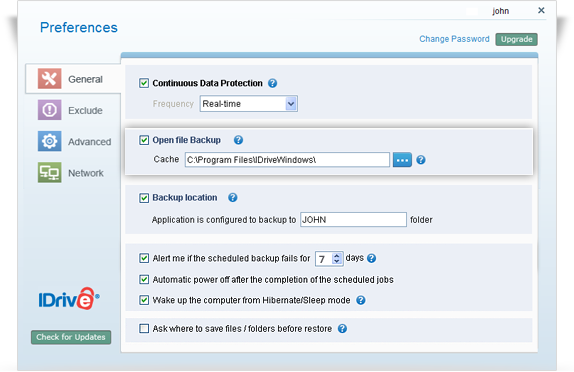
Can I backup my open / locked files?

IDrive application is capable of backing up open files for supported platforms including Windows XP, Windows 2003 server, 2008 server and 2012 server, Windows Vista, Windows 7 and Windows 8 is enabled by default.

Thus, even if your Microsoft Outlook application is open, the IDrive application does a reliable backup of associated data. Similarly, your Quickbooks / Quicken and other possible open files are backed up as well.


Note: The Open file Backup feature does not support backup of open files in the mapped/network drives.

I am unable to open my Outlook email client during the backup of my Outlook pst files. I get an error that indicates that the file may be in use. Why?

For Windows XP, Windows 2003 server, Windows Vista, Windows 7 and Windows 8 machines, the above issue should not arise.

However, for other Windows OS, the IDrive agent might lock your Outlook email client to perform a successful backup. To resolve the issue, close your MS Outlook email client before initiating the operation.


Will a missed scheduled backup take place when the computer is restarted after the scheduled time?

Yes. The scheduled backup will commence as soon as you restart the computer even if it is after the scheduled time. However, this is applicable only if you have selected the 'Start the missed scheduled backup when the computer is turned on' option from the 'Scheduler' screen.

In case you have not selected the option, then the scheduled backup will commence only if you restart the computer within 30 minutes of the scheduled time.

If you restart the computer after 30 minutes of the scheduled time, the scheduled backup will commence at the next frequency (as per the date and time that was set earlier).

How do I delete data from my Backup set?

You can delete data from the Backup set in the following ways:
 

  • Right-click the file / folder / drive under the 'Contents of my Backup Set' list and choose the 'Delete all items' or 'Delete selected item(s)' from the menu.
  • Select the file / folder / drive under the 'Contents of my Backup Set' list and press the 'Delete' key on your computer keyboard.

How do I add items to the IDrive Backup set from my local computer?

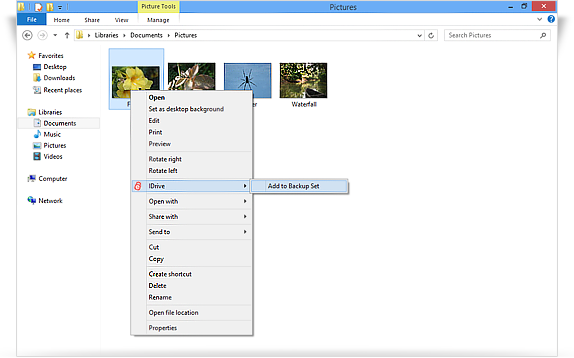
To add a file / folder to your Backup set from your local computer, select the desired file/folder, right-click and choose ‘IDrive’ > ‘Add to Backup Set’ from the menu.

The selected files / folders are backed up when you perform an interactive backup or during the scheduled backup.


Do I need to restart my computer after installing IDrive?

There is no need to restart your computer after IDrive has been installed.


Restore Related Questions

How do I restore my backed up data in case my system crashes (or to a new computer)?

To restore data backed up to your IDrive account to the local machine, follow the steps below:

1) Download and install the IDrive application.

2) Login with your Username and Password. If you had set a private encryption key while logging into the application for the first time, then provide the same.

3) From the 'Restore' tab, select the files / folders to be restored.

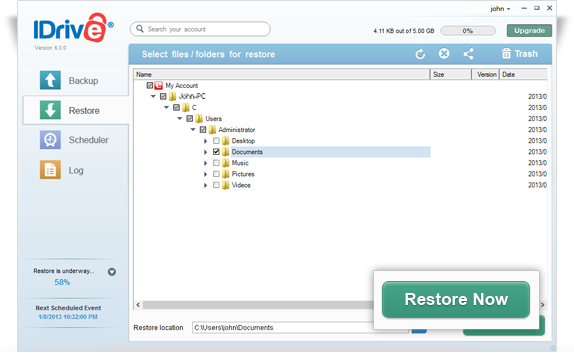
4) Choose the desired ‘Restore location’ and click on ‘Restore Now’ button.

What is Versioning? Does it impact the available quota (storage space in my account)?

IDrive retains previous versions of all files backed up to your account. Currently, you can restore 30 previous file versions to any location on your local computer.

The additional storage for the previous versions has no impact on your account's quota, as your storage is calculated only for the most current version.

How do I view the versions of a file stored in my account?

To view the versions of a file stored in your account, go to 'Restore' tab, right-click the required file and select the 'View previous versions' option from the list. You can also search your desired file version.

How do I restore the latest version of a file?

Select the ‘Restore’ tab, the latest files that are backed up to your IDrive account are listed there.

To restore the latest version, select the desired file / folder, select the destination to which you want to restore your data and click 'Restore Now' button. You can also search your desired file / folder and restore then back to your local system.

How do I delete data from my account?

Select the ‘Restore’ tab, the latest files that are backed up to your IDrive account are listed there.

To delete a particular file / folder from your IDrive account, select the desired file / folder and click the Delete icon.

I have backed up data on multiple computers. How do I restore?

To restore data backed up to multiple computers:

1. Login to your IDrive account with your username and password.

2. Select the computer(s) name that you wish to restore from the 'Restore' tab.

3. A list of files/folders backed up from the computer is displayed.

4. Select the files / folders which you wish to retrieve.

5. Choose your desired destination on the local computer and click ‘Restore Now’.


Cleanup

What is Archive Cleanup?

The Archive Cleanup feature permanently deletes data from your account, by matching them to the data in your current backup set. It is useful as it deletes data from your account that no longer exists on your computer.

To use Archive Cleanup,


  1. Click Archive Cleanup, under the Backup tab.

  2. Click on Cleanup Now button. IDrive will generate a list of items to be deleted from your account.

  3. Click Delete, to remove data from your account.

Note:
  • Archive Cleanup permanently deletes data which no longer exists on your computer to free up space in your account.
  • Archive Cleanup has controls to avoid inadvertent data deletion. For 'Cleanup Now' it considers up to 25% of files for deletion. The percentage mention refers to files considered for deletion in your account as a percentage of total number of files. The purpose of this percentage based control is to avoid large-scale deletion of files in your account due to some unforeseen event on your computer.

What is Periodic Cleanup?

You can set up automated cleanup periodically by enabling Periodic Cleanup.

Periodic Cleanup gives you more control by allowing you to set the frequency as well as the percentage of files to be considered. The frequency can be set to any thing between 10 and 30 days; percentage to anything between 5% and 25%.

To enable Periodic Cleanup,


  1. Click Archive Cleanup on the tool bar under the Backup tab.
  2. Select Periodic Cleanup by using the check box.
  3. Set the number of days and percentage of data to be considered for cleanup.


Note:
  • Periodic Cleanup may result in automatic deletion of data from your IDrive account; use/set this option carefully.
  • The percentage mention refers to files considered for deletion in your account as a percentage of total number of files. The purpose of this percentage based control is to avoid large deletion of files in your account due to some unforeseen event on your computer.


General

Does IDrive remove my account files when they are deleted from my computer?

No, your files will remain in your IDrive account forever, once they are backed up.

This means even if you accidentally delete files from your computer, they are not removed from IDrive servers; unless you delete them manually, or through the automated Archive Cleanup process.

I deleted files from my IDrive account. Is it possible to restore the files/folders that are deleted accidentally?

The files / folders that are deleted from your IDrive account are moved to Trash. These files / folders will be automatically deleted after a 30 day period. You can either move your files / folders to the original location in your IDrive account or restore them to your local computer.


To restore/move your files from Trash, follow these steps:

  1. Click on the 'Trash' icon. The files / folders available in Trash are listed with the latest version.
  2. Select the check box to restore / move the desired files / folders.
  3. Click to move the files / folders to the original location in your IDrive account OR click to restore your files / folders to the desired location in your local computer.


Note: You can also delete a file / folder permanently from Trash, if it is no longer required.

I want to restore the previous version of a file from Trash. Is it possible?

Yes. To restore previous version of a file, right-click on the desired file and select the 'View previous versions' option. Select the required file version and click 'Restore'.

If I keep on performing backups, will I use up my quota quickly?

IDrive does incremental backup (only the modified portion of your files/folders are sent to the IDrive servers). Your quota depends on the most recent file/folder copy backed up to your online account. The previous 30 versions of files are stored free.

I received a quota overuse email. What should I do?

You may opt to upgrade your account to accommodate the extra storage or remove some data from your account to bring it in line with your current quota.

To upgrade your account, login to your IDrive account with your Username and Password via the browser. Click 'Upgrade' to purchase more storage. Alternately, select the files / folders that you want to delete from the ‘Restore’ tab via your desktop client and click the 'Delete' icon.

Can I halt my backups at a particular time?

Yes. To enable this option go to ‘Scheduler’ tab > set your desired 'Cut-off Time' and select the check box. The backup is resumed at the next scheduled time from the point it was stopped.

Does IDrive support backup and restore of files larger than 2 GB?

Yes. IDrive has been tested to transfer files both ways for files of size upto 10 GB.

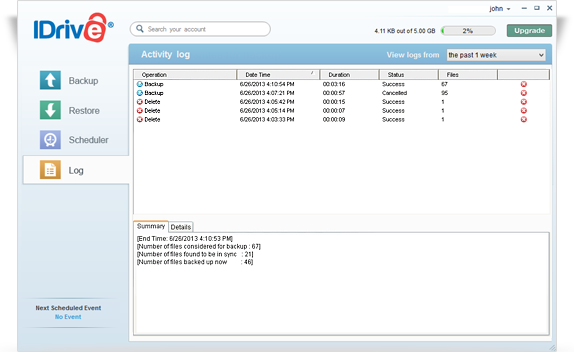
How do I view my Backup/Restore activities via the application?

Clicking on the Log tab allows you to view all the Scheduled and Interactive backup/restore activities in your account.


Can I share file(s) / folder(s) directly from IDrive?

Yes, you can share files / folders stored on your IDrive account with friends and associates for collaborative access.

To share files / folders,


  1. Select the files/folders and click Share icon under the Restore tab.

  2. You will be re-directed to your web account, from where you can set the share parameters.

  3. You can share your files and folders via email, Facebook and Twitter.
  4. You can password protect and write-enable your shared files/folders.
  5. Click Send email to send an email with the share link to your associates.
Note: Share feature is limited to IDrive accounts with default encryption key.

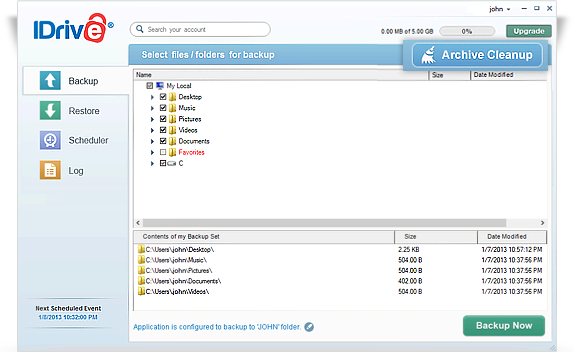
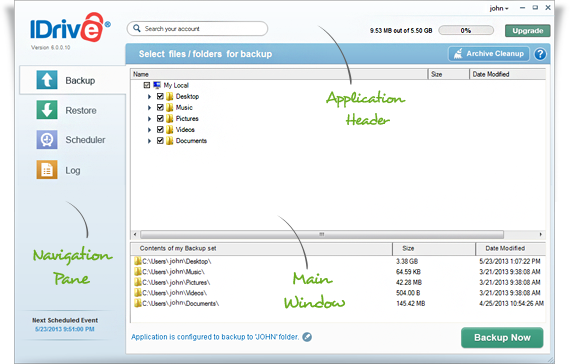
I need a walkthrough of the IDrive desktop application interface.

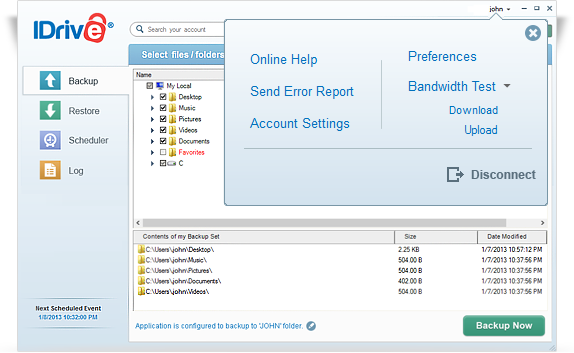
The IDrive desktop application interface can be split into three sections - application header, navigation pane, and main window.


Application header
The application header comprises the search, account quota information, Upgrade button, Archive Cleanup, and your Username linked to access—Online Help, Preferences, Send Error Report, Bandwidth Test, and Account Settings.

Navigation pane
The navigation pane comprises four functional tabs:

  • Backup - View and select files and folders to back up to your IDrive account
  • Restore – Displays all files / folders backed up to your account, allowing you to restore, share, search files / folders
  • Scheduler - Schedule your backups
  • Log tab – View session wise logs for all IDrive activities

Main Window
The main window displays contents related to the functional tab, selected on the navigation pane.
 

How should I avoid backing up a file? Should I simply clear the corresponding check boxes in the main window, or should I right-click the file or the folder and click the ‘Exclude this item from backup’ option? What’s the difference?

To stop a file from being backed up, you can either clear the corresponding check box in the main window, or right-click the file and ‘Exclude this item from backup’ option.


The former method of exclusion changes your backup set contents, while the latter method of exclusion keeps the contents of your backup set unchanged.

For Instance, to backup complete C drive (having 15 subfolders and 40 files) except for 4 subfolders, select the C drive for backup and then exclude the 4 subfolders.

If you exclude the subfolders by clearing their check boxes, then your backup set will list out every item in C drive except for those 4 subfolders, whereas if you use ‘Exclude’ option then your Backup set displays only ‘C:’.
 

I have backed up certain folders (containing multimedia, etc.) which are not going to change. Can I remove them from my backup set, presuming that the backed up data wouldn't be affected?

After you have backed up files that you will not update, you can remove them from your Backup set. All files, once backed up, remains unaffected in your IDrive account even if you remove their reference from your backup set.

In my backed up files, I see a numbers of files called 'desktop.ini'. Do I actually need these?

The 'desktop.ini' file is a hidden file used to customize the settings of the Windows folders that contain the file.
If you wish to avoid backing up these files, click on username at top-right corner of the application. Click Preferences > Exclude, and then use the ‘Files / Folders with partial names’ option. Alternatively, click on IDrive tray icon and choose Preferences option.

I have included files from a CD and DVD in my backup set. After I back them up, can I run subsequent backups without inserting the CD and DVD while my backup set still refers it?

Yes. The absence of the CD/DVD, referenced in your backup set, will not hinder your regular backup activity. However, files from CD/DVD shall not be backed up.

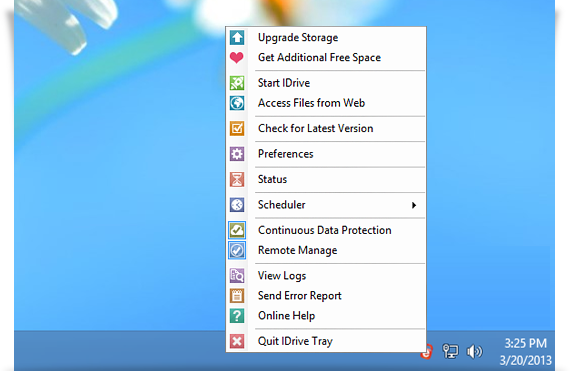
What are the options available in IDrive Tray?

On installation IDrive creates an IDrive Tray icon on your system tray.

Right-clicking the IDrive Tray icon provides access to the following options:


Menu Options
  • Upgrade Storage: You can upgrade your account to a higher plan.
  • Free Space: Provides you with options to add to your account’s free space.
  • Start IDrive: Start the IDrive desktop application.
  • Access files from Web: Login to your IDrive web account.
  • Check for Latest Version: This option gives you updates of the latest version of IDrive application.
  • Preferences: Change application settings and preferences.
  • Status: Displays the latest status of all schedule backup operations.
  • Scheduler: Manage your backup operations from the IDrive Tray.
  1. Manage all the scheduled jobs: Manage your scheduled backup jobs and view the scheduled backup job details.
  2. Pause the scheduled backup: You can pause your scheduled backup.
  3. Stop the scheduled backup: You can stop your scheduled backup.
  4. Disable all the scheduled jobs: You can disable/enable all scheduled backup jobs.
  • Continuous Data Protection: Enable/disable continuous data protection in your IDrive account.
  • Remote Manage: You can manage your backup set and its schedule via any browser.
  • View Logs: Check the activity log reports of your operations.
  • Send Error Report: Contact IDrive support team for queries, suggestions or feedback.
  • Online Help: Provides all information on the IDrive application.
  • Quit IDrive Tray: Closes IDrive Tray.


درباره ما
آموزش کامل نرم افزار و سرویس قدرتمند و رایگان آی درایو idrive جهت بکاپ گیری اتوماتیک ، به اشتراک گذاری و همگام سازی فایل ها در سرورهای ابری قدرتمند آنلاین idrive علی جعفرمحمدی
اطلاعات کاربری
  • فراموشی رمز عبور؟
  • آرشیو
    آمار سایت
  • کل مطالب : 13
  • کل نظرات : 5
  • افراد آنلاین : 1
  • تعداد اعضا : 0
  • آی پی امروز : 8
  • آی پی دیروز : 34
  • بازدید امروز : 105
  • باردید دیروز : 36
  • گوگل امروز : 0
  • گوگل دیروز : 0
  • بازدید هفته : 158
  • بازدید ماه : 968
  • بازدید سال : 24,342
  • بازدید کلی : 97,382
  • کدهای اختصاصی