loading...
IDrive | آی درایو

همگام سازی فایل ها در IDriveSync (زبان اصلی)

Sync

How do I upload to IDriveSync?

There are several ways to add files/folders to IDriveSync:

  • Drag-and-drop files or folders into the IDriveSync folder on your computer.
  • Drag-and-drop files from your computer to the IDriveSync website while you're logged in.
  • Log in to your account via any web browser, hover over the 'Upload' icon at the top, and select whether you'd like to upload individual files or entire folders.
    IDriveSync - Upload

Note: Upload Folder feature is currently supported only on Google Chrome.

How do I download files from my account?

To download data, you can:

  • Drag-and-drop files or folders from the IDriveSync folder to your computer.
  • Log in to your account online, right-click any file or folder, and then select 'Download' from the pop-up menu.
    Download Files
  • Log in to your account online, locate the file or folder, click the arrow icon IDriveSync on the right that corresponds to the file/folder, and select 'Download' from the pop up menu.
  • You can also select multiple folders (by marking the check boxes next to them) and download them as a zip file by clicking the 'download' arrow icon at the top.
  • To download a file, you can also click on the file name and select the 'download' icon from the menu on the opened file.
    Download Files

Are there any file size or type limitations?

On the web: There is a 200 MB limit for uploading files through the website.

On a computer: Nope! You can upload files of any size through the software. There is also no limit on the number of files!

So, upload away!

Can I retrieve an earlier version of a file I have synced?

Any time changes are made to a file, IDriveSync saves it as a new version. The 30 most recent versions of all files are kept and you can restore them at any time. See the IDriveSync General FAQ to learn how to restore an earlier version.

Will my files still sync if my computer is off?

No. IDriveSync will not be able to sync or access your data from computers or other devices unless they are turned on and connected to the Internet. If a computer is off when a file is changed from another device, IDriveSync will update that file once the computer is on and successfully connected to the Internet.

What are the blue and green icons over my files in My IDriveSync Folder?

Blue means files are still syncing.

Green means syncing is complete!

Sync progress

I have a lot of files. Is there an easy way for me to search through my stuff?

Yes, there is! Just above the file list online there is a search bar. As soon as you begin typing, IDriveSync begins matching file and folder names.

IDriveSync Search

Note: Empty folders are excluded from the search and will not show up.

How can I see which devices are linked to my account?

Login to IDrivesync.com via any web browser. Click on your email address at the top right of your screen to pull down the slider. Click 'Linked Devices' under Settings to view all the devices linked to your account.

IDriveSync - Linked Devices

Note: You can also unlink computers and devices from this page by clicking ‘Unlink’ on the right.

Can I unlink devices from my account?

Yes, you can.

On the web:
Login to idrivesync.com via any web browser, click on your email address at the top right of your screen to pull down the slider. Click on 'Linked Devices' under Settings and click on Unlink next to any device you wish to unlink.

IDriveSync - Linked Devices

On a computer:
You can also unlink individual computers by clicking/right-clicking on the IDriveSync icon IDriveSync in the system tray/menubar. Select the 'Unlink/Logout' button.

IDriveSync - Linked Devices

No more sync link!

How do I know where My IDriveSync Folder is located? Can I change the location?

Click/right-click the IDriveSync icon IDriveSync in the system tray/menubar and select 'Preferences'. Go to the 'Advanced' tab to view the current location of the IDriveSync Folder. From here, you may choose a new location for the IDriveSync Folder and the software will move your data.

IDriveSync - Folder Location

How do I see the status of a sync in progress?

To get sync progress details, you can mouse hover the IDriveSync icon IDriveSync in the system tray/menubar and a tooltip displays how many files are to be synced, the percentage completed, and the speed of the transfer. You can also click the IDriveSync icon to see the sync status within the menu. When syncing is complete, a brief notification is displayed on your screen.

IDriveSync - Folder Location

Can I pause a Sync in progress and resume later?

You can easily pause and resume a sync in progress by using the Windows and Mac IDriveSync app! Simply click/right-click on the IDriveSync icon IDriveSync in the system tray/menubar. There is an option to pause the sync in progress. Once the sync has been paused, if you click/right-click on the icon again, the option will change to a resume option.

IDriveSync - Tray

What is the re-initialize feature and how does it work?

The re-initialize feature matches and syncs the contents of your computer with your IDriveSync account. This is a useful option when you find that your files are not consistent between your computer and IDriveSync account.

To use this feature, click the IDriveSync IDriveSync tray icon (on Windows) or the menubar icon (on Mac) and choose 'Re-initialize IDriveSync' option from the menu.

IDriveSync - Tray

And now we’re back to business!

Sync slows down my network! How do I fix that?

IDriveSync generally wants to use all of the available bandwidth to Sync and Upload your files as fast as possible. We understand that this can be inconvenient if you have work to do or are sharing a network, so we've built a Bandwidth Throttle feature into the IDriveSync app.

Right-click on the IDriveSync icon IDriveSync in the system tray/menu bar and select 'Preferences' from the drop down menu. If you click on the 'Network' tab, you will see two bars listed as 'PC in use' and 'PC not in use'. Set these bars to let IDriveSync know how much bandwidth to use when you are using the computer and how much to use when you are not using it.

Bandwidth

Can I sync my Outlook data files or QuickBooks files to the IDriveSync?

No, IDriveSync cannot sync Outlook (.pst /.ost) or QuickBooks (.qbw) files. This is because when Outlook or QuickBooks files are open, they are continuously being accessed. As a result, the IDriveSync app would be capturing incorrect data.

But, you can use IDrive.com to back up those files!

Why can't I see some files or folders on some devices that are visible on other devices?

Problems with syncing certain files may be caused by the following:

Windows and Mac operating systems each have a set of reserved characters which are not allowed for file/folder names. So, if you created a folder on Web or Mac OS with a character that is incompatible with Windows OS, you may have problems syncing that folder to that computer.

Avoid using the below set of characters, when creating a file/folder:

Platform Unsupported Characters
Windows \ / : * ? " < > | Space at end
Mac :
Web /
APIs /

How do I select which folders to sync to my computer?

Using the 'Selective Sync' feature, you can choose which folders you want synced to your computers. It's especially useful if you want to save local space on computers, or if you don't want your personal files (such as your photos folder) syncing to your work computer.

To enable Selective Sync, Right-click the IDriveSync icon IDriveSync in the system tray/menu bar and select 'Preferences' > 'Advanced' tab.

Selective sync

Windows and Mac operating systems each have a set of reserved characters that are not allowed for file/folder names. So if you created a folder on Web or Mac OS with a character that is incompatible with Windows OS, you may have problems syncing that folder to that computer.

Click the 'Selective Sync' button, and a window with a list of all the folders in your IDriveSync folder will appear. By default, all the folders are selected. Uncheck any folder that you don't need to sync to your computer. All the unselected folders in the 'Selective Sync' preferences will be removed from the IDriveSync folder on your computer.

Note: If you create a folder with the same name in the location of an unsynced folder, the new folder will appear with a gray circle and a minus sign overlay. This icon indicates the folder is not being synced to your IDriveSync account. If you resume syncing the original folder with the same name through 'Selective Sync' preferences, the new folder (and its contents) will appear alongside the old folder in your IDriveSync folder and on your online account. The newer folder will keep its name, while the older folder will say 'Selective Sync Conflict'. You can rename these as you wish.

Selective sync


درباره سیستم اشتراک گذاری فایل Idrive (زبان اصلی)

General

What is IDriveSync?

IDriveSync is software designed to make it easy to sync files and folders between your computers and mobile devices, in addition to sharing them with friends.

Ooooo! Tell me more!

What does syncing mean?

IDriveSync creates a special folder on your computer - the files and folders you place in this folder will be copied to the IDriveSync cloud, where it is held securely in our servers. The data is then available on all of the devices you have connected to your IDrive account (mobile devices, computers, etc.) This process makes the files accessible anywhere, at anytime. If you update a file on one device, IDriveSync will automatically update your other devices.

IDriveSync - Explorer

What is Timeline?

With Timeline view, you can view all the photos and videos in your account, uploaded from any device, chronologically by month. Items can be selected from within the Timeline view to share, move, copy, delete, etc. Clicking on any item will open the image in the Gallery view. The Timeline icon is present on the Home screen beside the search field.

IDriveSync - Timeline IDriveSync - Timeline

How can I recommend IDriveSync to my friends?

Login to your IDriveSync account and click 'Get free space'.

IDriveSync

Click the 'Refer Friends' option.

IDriveSync

Select contacts from Gmail / Yahoo or enter email addresses to send invites. You can also use the referral link to share it on social networks.

IDriveSync

How does the referral system work?

IDriveSync's referral system ensures benefits for you and your friends. By referring IDriveSync you can earn up to 18GB. The referred person needs to sign up via the link shared by the IDriveSync user (you, in this case). When your referral accepts and signs up for IDriveSync, both you and your referral will each earn 1 GB.

See! Sharing is caring!

What is Versioning?

Any time changes are made to a file, IDriveSync saves it as a new version. The 30 most recent versions of each file are kept and you can restore them at any time.

Older versions do not count towards your allocated storage space. Only the most recent version (the one that you see in your account currently) uses up space. None of the files listed as older versions take up space.

You can also access, restore, or download an older version. See How do I restore an earlier file version?

Do versions count as stored files?

Only the latest version of each file (the one you see in your account) takes up Sync space in your account. Earlier versions are kept without counting as stored data.

How do I restore an earlier file version?

On the web

  1. Login to IDriveSync.com and locate the file you wish to restore an earlier version of.
  2. Right-click the file and select "Versions" from the dropdown menu.
  3. You will be presented with the older versions of your file. Select the one you would like to make current by clicking the "Make this current" option located to the right of the file. This will replace this file in your IDriveSync account with this selected version.
  4. Instead of restoring an earlier version, you also have the option to keep the current version and simply download an older version. Select which version you'd like to download by clicking on the IDriveSync icon next to the file.

You can also choose the file that you would like to make current, by clicking 'Make this current' option located to the right of the file.

IDriveSync - Versions

On a computer

  1. Click/right-click the IDriveSync icon IDriveSync in the System Tray/Menu Bar and select 'My IDriveSync Folder' from the popup menu.
  2. Right-click the file you wish to restore an earlier version of and go to 'IDriveSync.' From the pop out menu, select 'Versions.'
  3. From here you can either:
    1. Click the Download button next to the version you would like to restore to your computer or
    2. Select 'Make this current' next to the file you would like to restore. ('Make this current' replaces the version in your IDriveSync account. Downloading puts a downloaded version of the file on your computer, but does not replace the version in your IDriveSync account.)
IDriveSync - Versions

You thought you'd lost that older version, but we were keeping it safe for you...

What happens if I work on the same file in different locations at the same time?

If you've opened a file in multiple locations at the same time, you may accidentally overwrite updates when you save. IDriveSync can't merge the changes, but you will always have access to earlier versions, just in case.

How do I view photos?

There are different ways to view photos.

Click a photo to view:
To open a photo for viewing, simply click a photo. The photo opens up and you can either view it on fullscreen or perform more actions like share, rotate, move, delete, and copy.

IDriveSync - Photo to View

View in Gallery:
Whenever photos or videos are present in a folder in your file manager, a 'Gallery' icon IDriveSync will appear beside the search field. This icon opens up the Gallery. Gallery view will display your photos and videos on a beautiful black background that was designed to improve your viewing experience. From the Gallery, multiple files can be selected for download, share, move, copy, etc.

Gallery

You can also access the Gallery by opening a picture and clicking the Gallery icon IDriveSync present below the image and alongside the other options.

Gallery


آموزش بکاپ گیری اتوماتیک از موبایل بوسیله Idrive (زبان اصلی)

Mobile Access

 
In case your query has not been addressed below, contact us through the feedback form for a prompt response.

Backup

faq How do I backup my device contents in one touch?
faq Can I backup contacts from my device?
faq How do I backup photos/videos from my device?
faq How to backup specific photos/videos from my device?
faq How do I backup calendar events from my device?
faq How do I backup SMS from my Android device?
faq How do I backup call logs from my Android device?
faq How do I backup apps from my Android device?
faq How do I backup other file types from my Android device?
faq How does 'Auto Camera Upload' work?

View and Access

faq What are the file/folder operations that I can perform on my device?
faq
faq Can I access my mobile backup data through web?
faq How do I view the files/folders shared with me?
faq Can I edit backed up files on my iPhone/iPad/Android mobile?
faq How do I search files in IDrive account from my mobile?

Share

faq How do I share my photos/videos?
faq How do I share my contacts?

Restore

faq How do I restore any device contents in one touch?
faq How do I restore photos/videos to my device?
faq How to restore iPhone/iPad/Android calendar events?
faq How do I restore contacts to my device?
faq How do I restore SMS to my Android device?
faq How do I restore call logs to my Android device?
faq How do I download backed up apps to my Android device?
faq How do I restore other file types to my Android device?
faq Where does IDrive store my restored files on my Android device?

How do I backup my device contents in one touch?

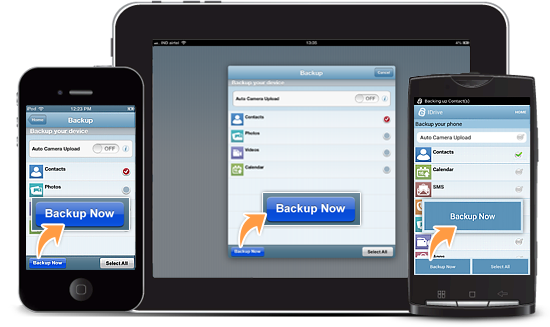
When you sign up to IDrive, you will have the option to backup all your device contacts, photos, videos, calendar events, SMS*, call logs* and apps* to your IDrive account with a single tap. You can customize the selection based on your requirement and tap on the Backup Now button.

For subsequent backups, tap on 'Backup' from the home screen and choose the contents for backup.

* Currently available only on Android devices.

Can I backup contacts from my device?

Yes, you can back up your contacts from the device to your IDrive account.
  1. Log into the IDrive Online app and tap on 'Backup'.
  2. Select 'Contacts' and tap on the 'Backup Now' button.
  3. All backed up contacts will be available in 'My iPhone folder'/'My Phone Backup' folder.
     

How do I backup photos/videos from my device?

  1. Log into the IDrive Online app and tap on 'Backup'.
  2. Select 'Photos' or 'Videos' to backup.
  3. Tap on the 'Backup Now' button.
  4. All backed up photos/videos will be available in 'My iPhone folder'/'My Phone Backup' folder.

Note: You may tap on Photos/Videos folder to select specific items from your device for backup. You can also view the backup progress.

How to backup specific photos/videos from my device?

  1. Login to your IDrive account and tap 'Backup'.
  2. Tap on 'Photos'/'Videos' folder.
  3. Select photos/videos you wish to backup.
  4. Tap 'Done', and then tap on the 'Backup Now' button.
  5. All backed up photos/videos will be available in 'My iPhone folder'/'My Phone Backup' folder.

How do I backup calendar events from my device?

  1. Log into the IDrive Online app, and tap on 'Backup'.
  2. Select 'Calendar' and tap on the 'Backup Now' button.
  3. All backed up calendar events will be available in 'My iPhone folder'/'My Phone Backup' folder.

How do I backup SMS from my Android device?

  1. Log into the IDrive Online app, and tap on 'Backup'.
  2. Select 'SMS' and tap on the 'Backup Now' button.
  3. All backed up SMS will be available in 'My Phone Backup' folder.

How do I backup call logs from my Android device?

  1. Log into the IDrive Online app, and tap on 'Backup'.
  2. Select 'Call Logs' and tap on the 'Backup Now' button.
  3. All backed up call logs will be available in 'My Phone Backup' folder.

How do I backup apps from my Android device?

  1. Log into the IDrive Online app, and tap on 'Backup'.
  2. Select 'Apps' and tap on the 'Backup Now' button.
  3. All backed up apps will be available in 'My Phone Backup' folder.

Note: IDrive does not backup any data or saved settings from the apps.

How do I backup other file types from my Android device?

  1. Log into the IDrive Online app, and tap on 'Backup'.
  2. Tap on 'Other Files' folder.
  3. Select the files to backup using the icon.
  4. Tap 'Done', and then tap the 'Backup Now' button.
  5. All backed up files will be available in 'My Phone Backup' folder.

How does 'Auto Camera Upload' work?

For iPhone/iPad

With 'Auto Camera Upload', you can automatically backup all the photos and videos from your device Camera Roll to IDrive account. Additionally, all live captures are also automatically backed up. On your first login, the 'Auto Camera Upload' option is set to OFF. You can also turn on or turn off from Settings in the home screen. All photos and videos automatically backed up are stored in My iPhone/iPad Backup > Photos/Videos > Camera Roll folder in your IDrive account.

For Android Mobile

With 'Auto Camera Upload', you can automatically backup all the photos and videos from your device Gallery > Camera folder to IDrive account. Additionally, all live captures are also automatically backed up. On your first login, the 'Auto Camera Upload' option is set to OFF. You can either turn on or turn off this option from Backup in the home screen. All photos and videos automatically backed up are stored in My Phone Backup > Photos/Videos folder in your IDrive account.

What are the file/folder operations that I can perform on my device?

You can perform all file/folder operations like cut, copy, rename, delete and create a new folder on your mobile device.

Can I access my IDrive account on my iPhone/iPad/Android mobile?

Yes, you can access your IDrive account on your iPhone/iPad/Android mobile.

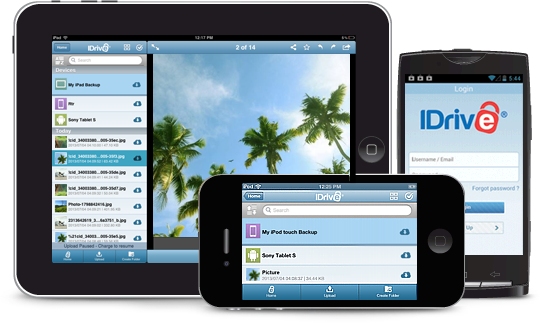
  1. Download and install the IDrive Online app on your iPhone/iPad/Android mobile.
  2. Login to the application using your IDrive credentials. If you do not have an IDrive account, sign up for a new account.

You can browse, search and access all backed up files/folders in your IDrive account. In case, you have a private encryption key set for your IDrive account, enter the key to view your backed up files.


Can I access my mobile backup data through web?

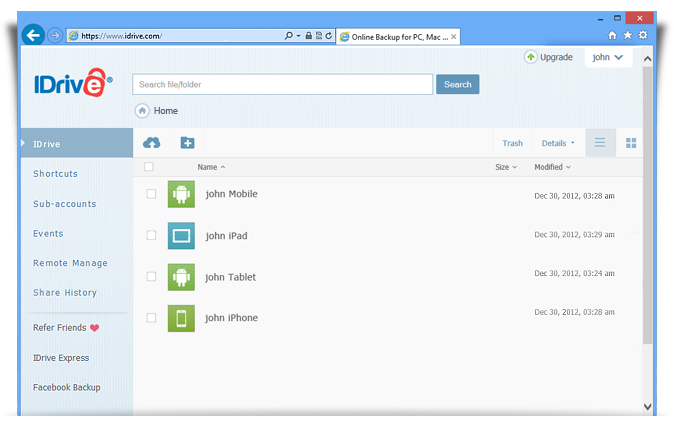
Yes. Login to your IDrive account via any web browser. Select the folder with your phone name. Now, you can access Calendar, Contacts, Photos, Videos, SMS*, Call Logs* and Apps* backed up to your IDrive account.

* Currently available only on Android devices.

How do I view the files/folders shared with me?

You can view the files/folders shared with you via web interface. Click on the share link received via email to view and download the shared files.

Can I edit backed up files on my iPhone/iPad/Android mobile?

No, you cannot edit your backed up files on your iPhone/iPad/Android mobile. However, you can view the files in your IDrive account.

How do I search files in IDrive account from my mobile?

You can search and preview any file in your IDrive online account from mobile.

For iPhone/iPad

1. Log into the IDrive Online app and tap on 'Access and Restore'.
2. Enter the complete or part of the file name in the search bar and tap 'Search'.

For Android

1. Log into the IDrive Online app and tap on 'Access and Restore'.
2. Tap on the menu icon and select 'Search'.
3. Enter the complete or part of the file name in the search bar and tap Enter.

How do I share my contacts?

To share contacts with friends or associates via the IDrive Online app, follow the below instructions:

For iPhone/iPad

  1. Log into the IDrive Online app and tap on 'Access and Restore'.
  2. Select 'My iPhone/iPad Backup' or any other device folder.
  3. Tap on 'Contacts' folder and then tap on icon.
  4. Select the contacts to share.
  5. Tap on the 'More' button and choose 'Share'.

For Android

  1. Log into the IDrive Online app and tap on 'Access and Restore'.
  2. Select 'My Phone Backup' or any other device folder.
  3. Tap on 'Contacts' folder, and then tap on  icon.
  4. Select contacts to share and tap on icon.

To share a specific contact,

  1. Tap on 'Contacts' folder.
  2. Select contacts to share by using the icon.
  3. Tap on the 'Share' button.

Note: The Share option is available only for IDrive accounts with default encryption.

How do I share my photos/videos?

To share photos/videos with friends or associates via the IDrive Online app, follow the below instructions:

For iPhone/iPad

  1. Log into the IDrive Online app and tap on 'Access and Restore'.
  2. Select 'My iPhone/iPad Backup' or any other device folder.
  3. Tap on 'Photos'/'Videos' folder and tap on icon.
  4. Select the photos/videos to share.
  5. Tap on the 'More' button and choose 'Share'.

For Android

  1. Log into the IDrive Online app and tap on 'Access and Restore'.
  2. Select 'My Phone Backup' or any other device folder.
  3. Tap on 'Photos'/'Videos' folder.
  4. Tap menu and choose 'Edit'.
  5. Select photos/videos to share by using the icon.
  6. Tap on icon.

Note: The Share option is available only for IDrive accounts with default encryption.

How do I restore any device contents in one touch?

  1. Log into the IDrive Online app and tap on 'Access and Restore'.
  2. Tap on corresponding to the folder you wish to restore.
     
Note: Only files compatible to your iOS device will be restored.

How do I restore photos/videos to my device?

For iPhone/iPad

  1. Log into the IDrive Online app and tap on 'Access and Restore'.
  2. Select 'My iPhone/iPad Backup' or any other device folder.
  3. Tap on corresponding to the 'Photos'/'Videos' folder to restore all your photos/videos.

To restore specific photos/videos,

  1. Tap on 'Photos'/'Videos' folder, and then tap on icon.
  2. Select the photos/videos to restore and tap on the 'Restore' button.


For Android Mobile

  1. Log into the IDrive Online app and tap on 'Access and Restore'.
  2. Select 'My Phone Backup' or any other device folder.
  3. Tap on corresponding to the 'Photos'/'Videos' folder to restore all your photos/videos.

To restore specific photos/videos,

  1. Tap on 'Photos'/'Videos' folder and long press on a photo/video.
  2. Select photos/videos to restore by using the icon.
  3. Tap on the 'Restore' button.

How to restore iPhone/iPad/Android calendar events?

For iPhone/iPad

  1. Log into the IDrive Online app and tap on 'Access and Restore'.
  2. Select 'My iPhone/iPad Backup' or any other device folder.
  3. Tap on corresponding to the 'Calendar' folder to restore all your calendar events.

To restore specific calendar events,

  1. Tap on 'Calendar' folder, and then icon.
  2. Select the calendar events to restore and tap on the 'Restore' button.


For Android Mobile

  1. Log into the IDrive Online app, and tap on 'Access and Restore'.
  2. Select 'My Phone Backup' or any other device folder.
  3. Tap on corresponding to the 'Calendar' folder to restore all your calendar events.
     
To restore specific calendar events,

  1. Tap on 'Calendar' folder and long press on a calendar event.
  2. Select calendar events to restore by using the icon.
  3. Tap on icon.

How do I restore contacts to my device?

You can restore your device contacts from your IDrive account.

For iPhone/iPad

1. Log into the IDrive Online app and tap on 'Access and Restore'.
2. Select 'My iPhone/iPad Backup' folder or any other device folder.
3. Tap on corresponding to 'Contacts' folder to restore all your contacts.

To restore specific contacts,

  1. Tap on 'Contacts' folder, then tap on icon.
  2. Select the contacts to restore and tap on the 'Restore' button.


For Android Mobile

  1. Log into the IDrive Online app and tap on 'Access and Restore'.
  2. Select 'My Phone Backup' or any other device folder.
  3. Tap on corresponding to 'Contacts' folder to restore all your contacts.

To restore specific contacts,

  1. Tap on 'Contacts' folder and long press on a contact.
  2. Select contacts to restore by using the icon.
  3. Tap on icon.

Note: To restore earlier versions of your contacts, tap on 'Contacts' > 'Version' and choose the desired version.

How do I restore SMS to my Android device?

  1. Log into the IDrive Online app and tap on 'Access and Restore'.
  2. Select 'My Phone Backup' or any other device folder.
  3. Tap on corresponding to 'SMS' folder to restore.

To restore specific SMS,

  1. Tap on 'SMS' folder and long press on a message.
  2. Select messages to restore by using the icon.
  3. Tap on icon.
     

How do I restore call logs to my Android device?

  1. Log into the IDrive Online app and tap on 'Access and Restore'.
  2. Select 'My Phone Backup' or any other device folder.
  3. Tap on corresponding to 'Call Logs' folder to restore.

To restore specific call logs,

  1. Tap on 'Call Logs' folder and long press on a log.
  2. Select logs to restore by using the icon.
  3. Tap on icon.

How do I download backed up apps to my Android device?

  1. Log into the IDrive Online app and tap on 'Access and Restore'.
  2. Select 'My Phone Backup' or any other device folder.
  3. Tap on corresponding to 'Apps' folder to restore.

To restore specific apps,

  1. Tap on 'Apps' folder and long press on an app.
  2. Select apps to restore by using the icon.
  3. Tap on 'Restore' button.

How do I restore other file types to my Android device?

  1. Log into the IDrive Online app and tap on 'Access and Restore'.
  2. Select 'My Phone Backup' or any other device folder.
  3. Tap on corresponding to 'Other Files' folder to restore.

To restore specific other files,

  1. Tap on 'Other Files' folder and long press on a file.
  2. Select files to restore by using the icon.
  3. Tap on 'Restore' button.

Where does IDrive store my restored files on my Android device?

The files and folders restored from IDrive is stored in SD Card > IDrive_Download folder on your device.


تعداد صفحات : 4

درباره ما
آموزش کامل نرم افزار و سرویس قدرتمند و رایگان آی درایو idrive جهت بکاپ گیری اتوماتیک ، به اشتراک گذاری و همگام سازی فایل ها در سرورهای ابری قدرتمند آنلاین idrive علی جعفرمحمدی
اطلاعات کاربری
  • فراموشی رمز عبور؟
  • آرشیو
    آمار سایت
  • کل مطالب : 13
  • کل نظرات : 5
  • افراد آنلاین : 1
  • تعداد اعضا : 0
  • آی پی امروز : 8
  • آی پی دیروز : 34
  • بازدید امروز : 106
  • باردید دیروز : 36
  • گوگل امروز : 0
  • گوگل دیروز : 0
  • بازدید هفته : 159
  • بازدید ماه : 969
  • بازدید سال : 24,343
  • بازدید کلی : 97,383
  • کدهای اختصاصی